
Chrome extension
The extension adds a Whatixo panel next to your chats in WhatsApp Web: personalized campaigns, contact extraction, quick replies, customer card and privacy mode. It uses your Whatixo account and plan. Works with Google Chrome, Microsoft Edge, Brave and Opera on desktop.
Install and sign in
Install the extension
From the Chrome Web Store (search for “Whatixo”) or whatixo.com/extension, click Add to Chrome. Pin the Whatixo icon to the toolbar (puzzle icon → pin).
Automatic sign-in
If you’re already signed in to app.whatixo.com in this browser, the extension signs in to your account on its own. Otherwise the panel offers to sign in or create a free account: sign in in the tab that opens, the extension is linked and WhatsApp Web opens automatically.
Click the Whatixo icon
From any website, the icon opens WhatsApp Web (or switches to the tab already open). On WhatsApp Web, it opens the panel on the right. If the panel doesn’t open the first time, click the icon again once you’re on WhatsApp Web.
Link WhatsApp Web if needed
Scan the WhatsApp Web QR code with your phone (WhatsApp → Linked devices → Link a device). The extension detects the connection: the panel shows your number in green. If WhatsApp Web isn’t in sync, the page is refreshed automatically once.
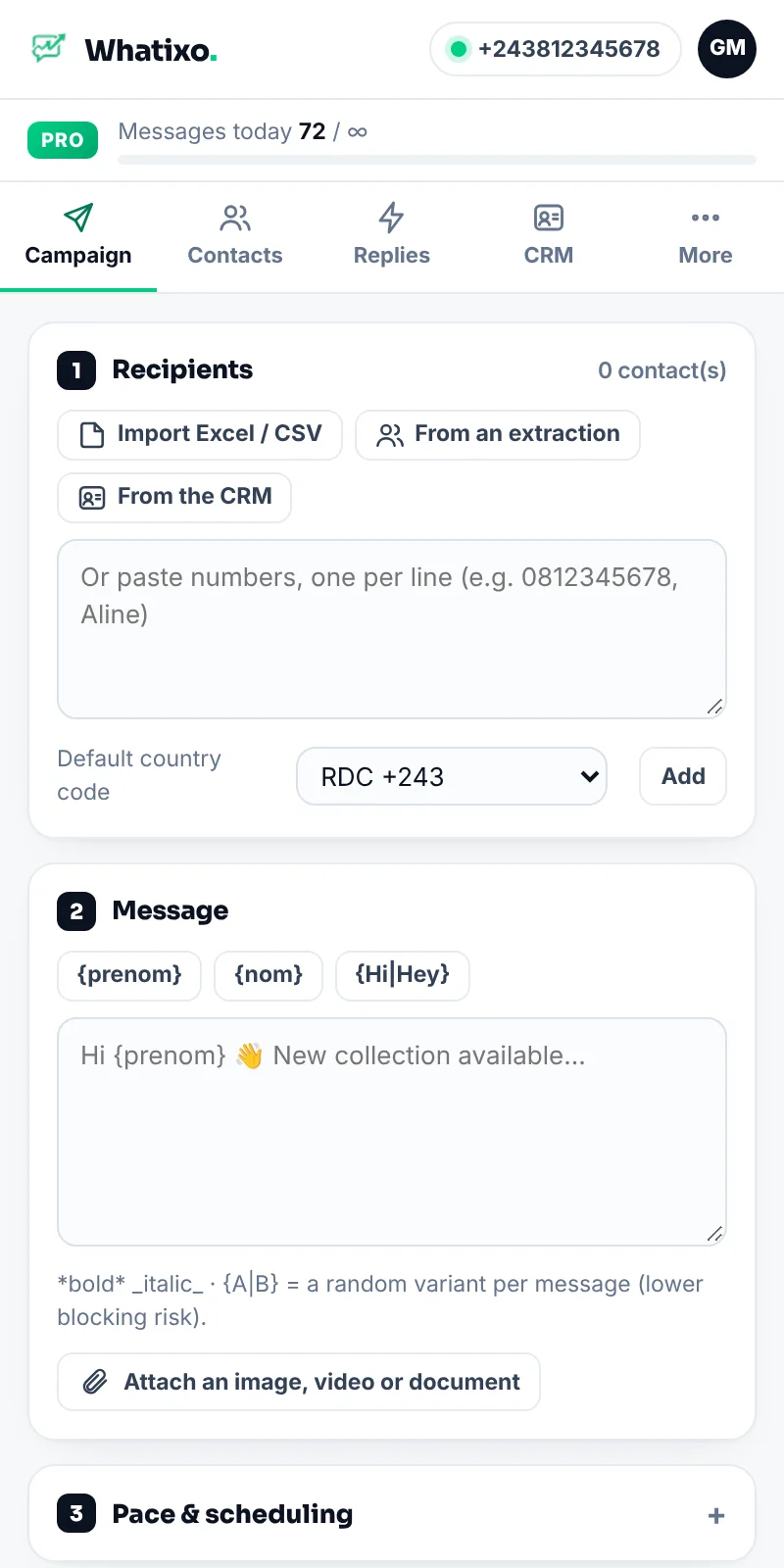
The panel only shows on WhatsApp Web (to work) and app.whatixo.com (to sign in). On other websites it stays closed.
Send a campaign from WhatsApp Web
Recipients
Import an Excel / CSV file, reuse an extraction result, pick a tag from your CRM (paid plans), or paste numbers, one per line, optionally followed by the first name: 0812345678, Aline. Choose the default country code for local numbers.
Message
Click {prenom} (first name), {nom} (last name) or a column from your file to personalize. Variants {Hi|Hello|Hey} pick a random word for each message: every send is unique, which lowers the risk of being blocked. WhatsApp formatting: *bold*, _italic_. The preview shows the message as the customer will get it.
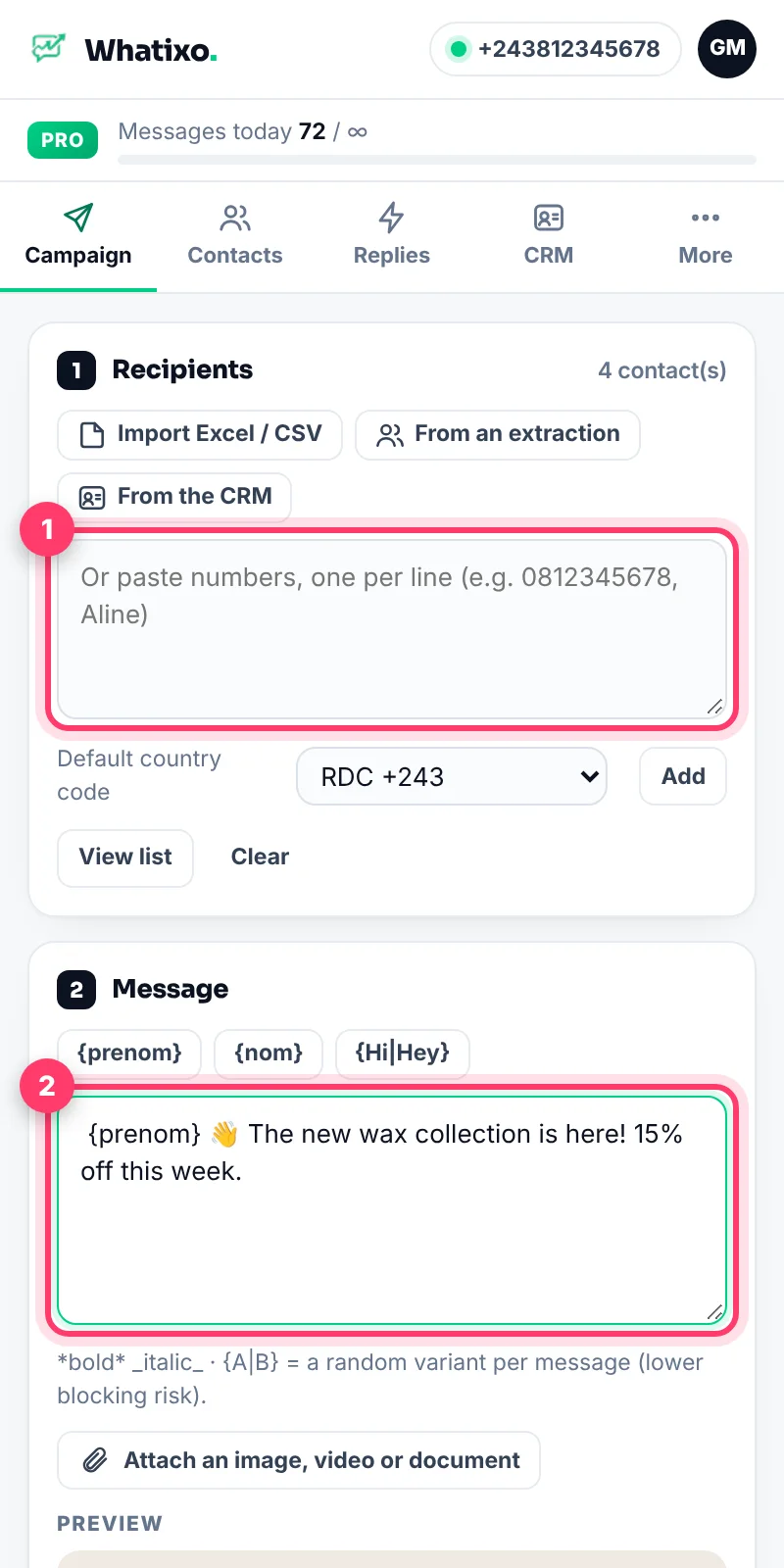
Pace and scheduling
The delay between two messages (12 to 25 seconds by default) and a regular long pause (e.g. 5 minutes every 30 people) mimic a human pace. Paid plans can schedule the start time and attach an image, video or PDF.
Launch and track
Launch the campaign. The tracker shows sent, failed and remaining, the countdown to the next send, and the latest sends. You can close the panel: the campaign keeps going while WhatsApp Web stays open, and resumes after sleep mode. Pause, resume, stop, retry failures and export the report in one click.
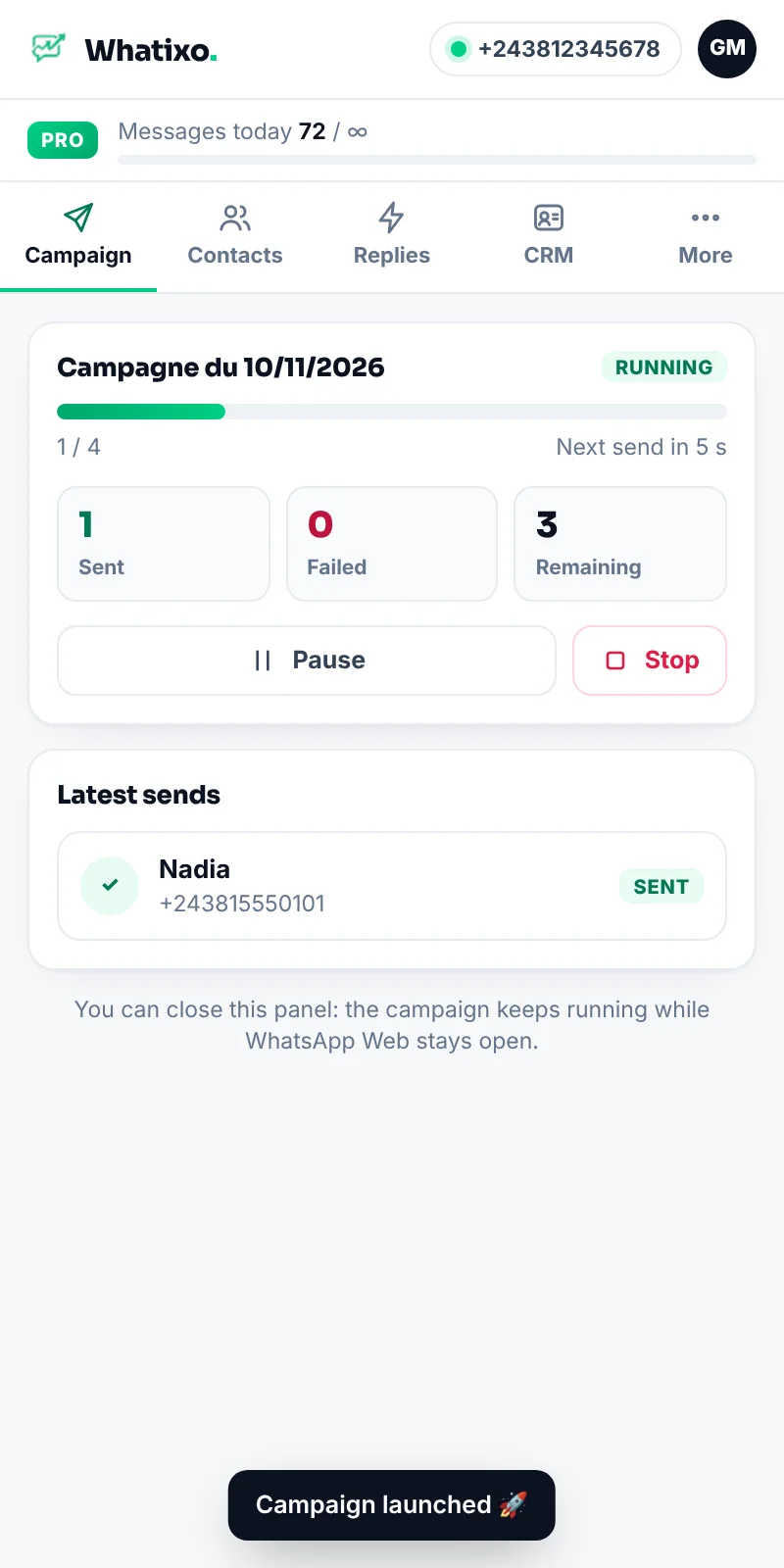
Anti-blocking best practices: keep 12 to 30 second delays and a long pause every 30 to 50 people, personalize with {prenom} and variants, always offer an opt-out (“Reply STOP”). For high volumes, use the app’s campaigns.
Extract contacts
In the Contacts tab, choose the source:
- Group members (admins flagged);
- Saved contacts in your phone;
- Unsaved chats (people who wrote to you without being in your contacts) or all chats;
- Label (WhatsApp Business): “New order”, “Paid”…
Click Extract, then export to Excel, CSV or contact cards (vCard), send the list to the Whatixo CRM or create a campaign with these contacts.
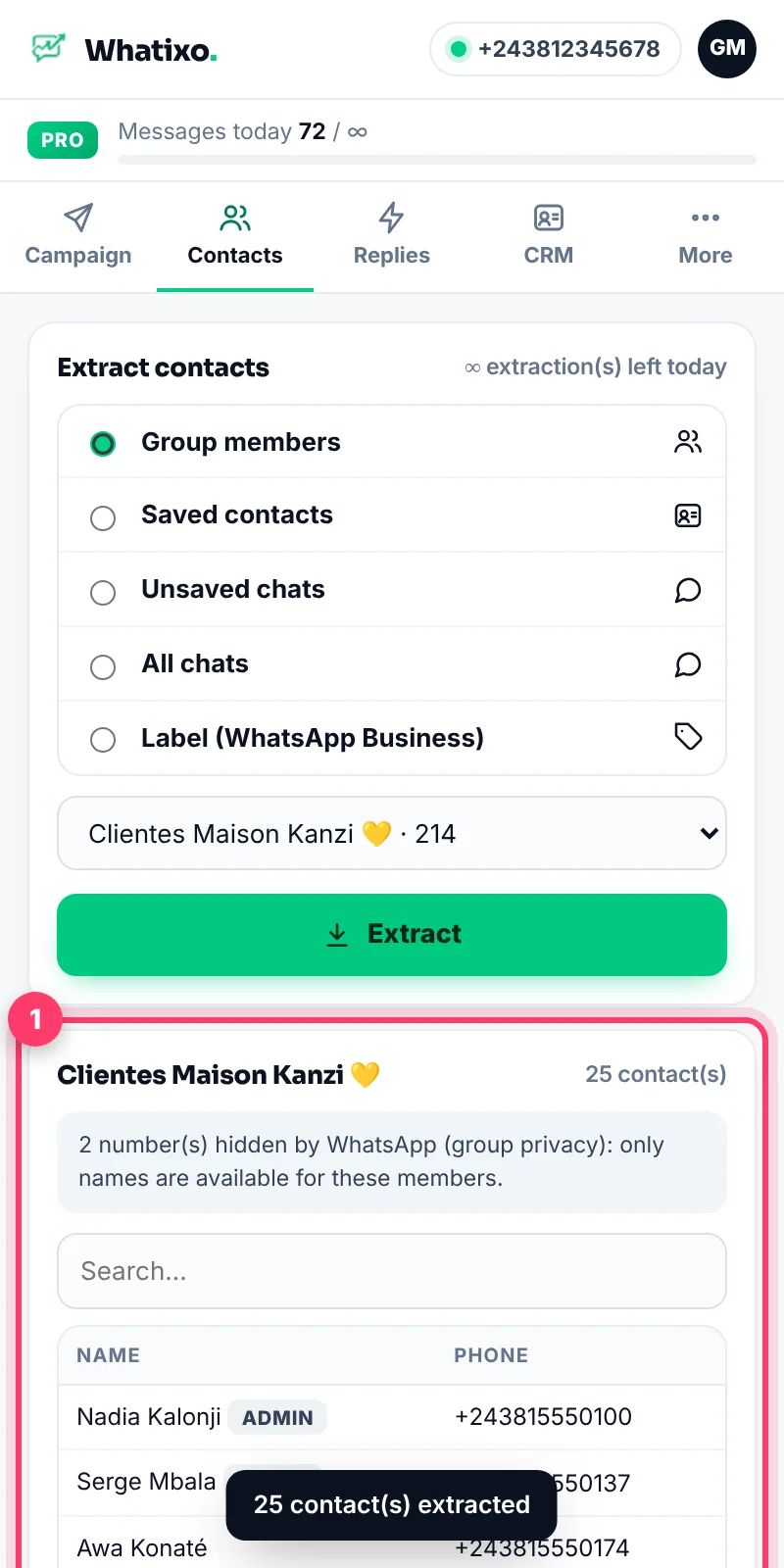
WhatsApp hides some group members’ numbers. The extension recovers every number your WhatsApp knows and flags the others as “hidden”.
Customer card and quick replies
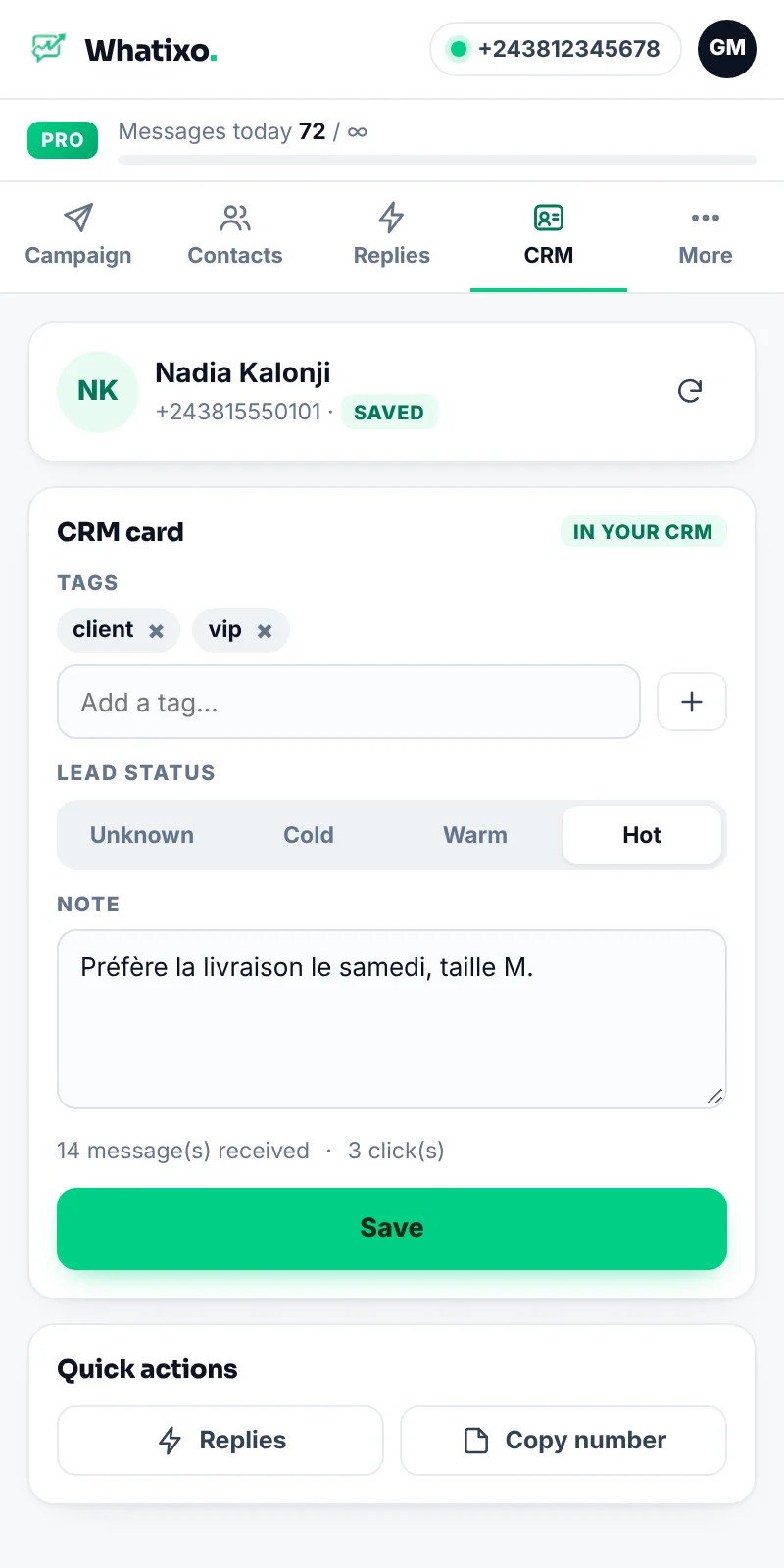
- CRM: the card of the person you’re chatting with appears automatically: tags, lead status, notes. Everything syncs with your Whatixo contacts (paid plans).
- Replies: your saved messages (prices, delivery, payment). Insert puts them in the input box, Send sends them right away.
{prenom}is replaced by the contact’s first name.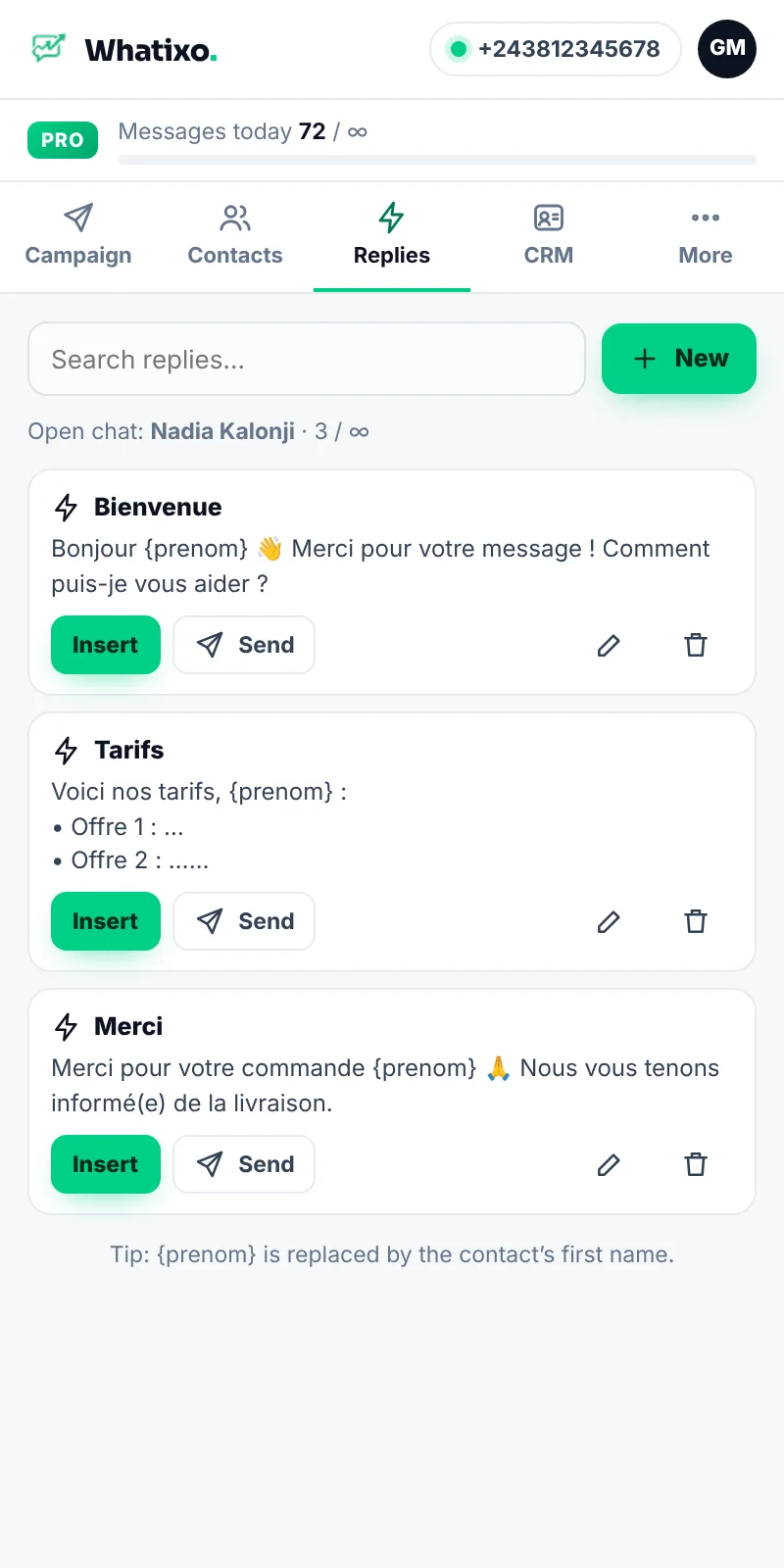
Privacy, language and account
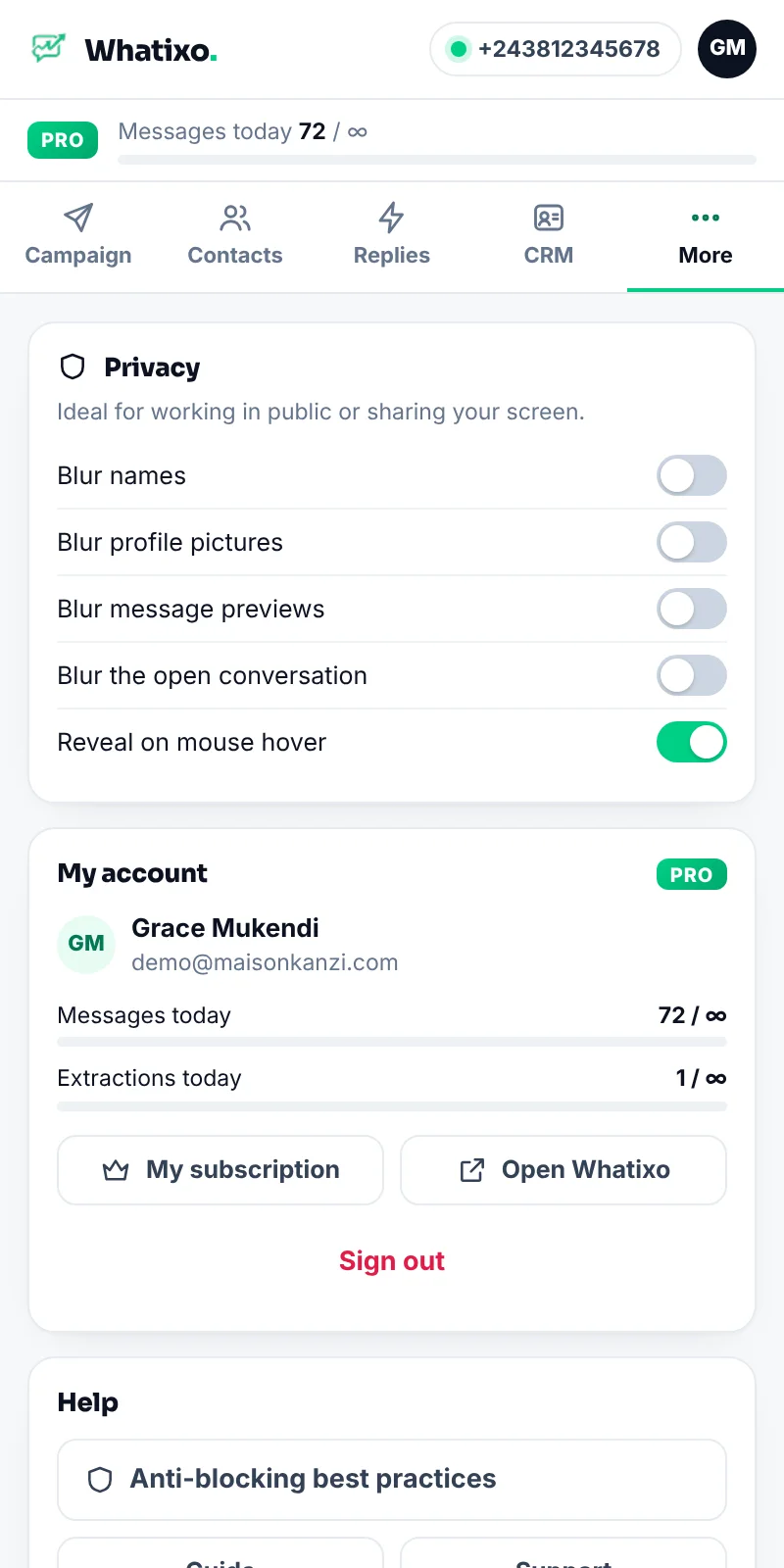
More tab: today’s counters, privacy mode (blur names, profile photos, message previews and the open chat, revealed on mouse hover: ideal when working in public or sharing your screen), the language (French / English), your plan and sign-out.
Following the extension from the app
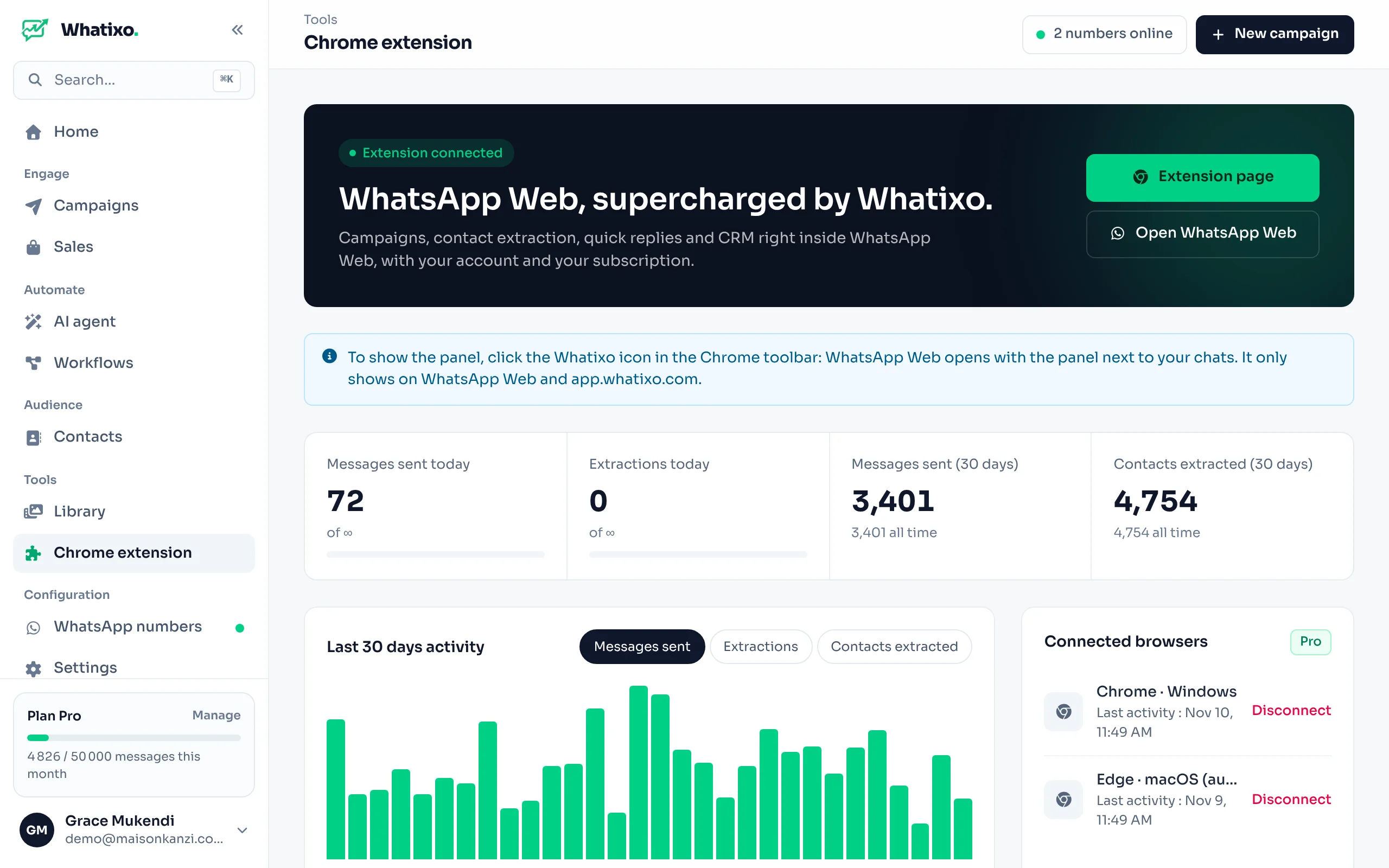
Menu Tools → Chrome extension: messages sent and contacts extracted day by day, and the list of connected browsers. Disconnect removes a browser’s access (lost computer, shared workstation).
Your data
Your WhatsApp chats and contacts never leave your browser: the extension only sends Whatixo your plan’s usage counters, and the contacts you choose to send to the CRM.
Troubleshooting
The panel says “Scan the QR code”
WhatsApp Web isn’t linked to your phone yet. Scan the QR code: the panel turns green on its own, no refresh needed.
The panel doesn’t open
Make sure you’re on web.whatsapp.com, then click the Whatixo icon (pin it if needed). Right after an install or update, open WhatsApp Web tabs are refreshed automatically.
The extension asks me to sign in although I’m signed in to Whatixo
Open a tab on app.whatixo.com: sign-in happens automatically. If you had signed out of the extension on purpose, click the button to sign in with your Whatixo account.
My campaign paused
The reason is shown: WhatsApp Web closed or disconnected (the campaign resumes on its own), your plan’s daily limit reached (resumes the next day), or a manual pause.