
Email campaigns
Send newsletters, promotions and announcements from your own address (hello@your-store.com), with the same CRM as WhatsApp and SMS. Menu Engage → Campaigns → Email.
1. Connect your email address
“Sending addresses” tab
Click Connect an address.
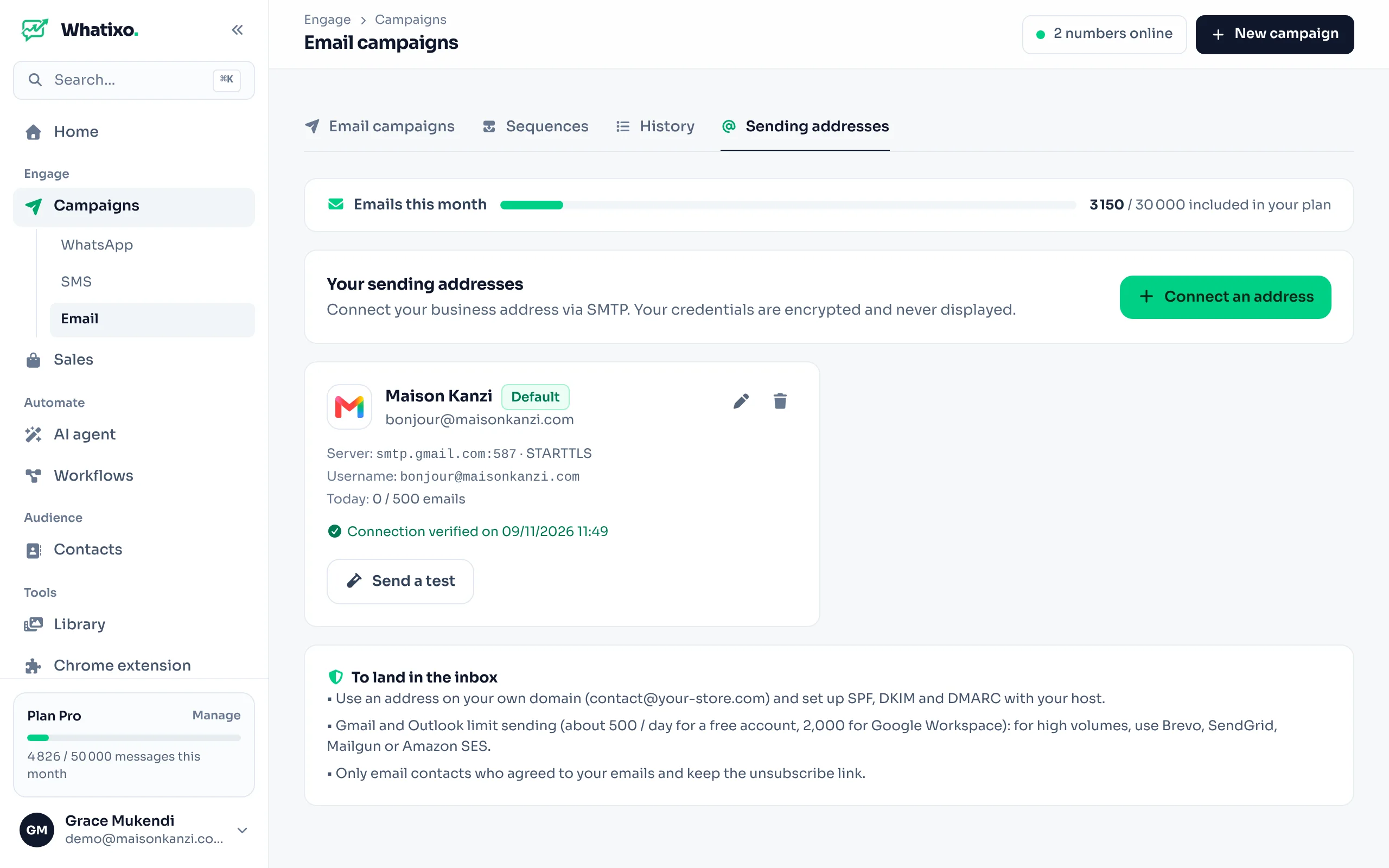
Choose your email provider
Gmail / Google Workspace, Outlook / Microsoft 365, Zoho Mail, OVHcloud, Hostinger, IONOS, Gandi, Yahoo, iCloud, Brevo, SendGrid, Mailgun, Amazon SES… The server and port are filled in for you. Host not listed? Choose Other (my host’s SMTP).
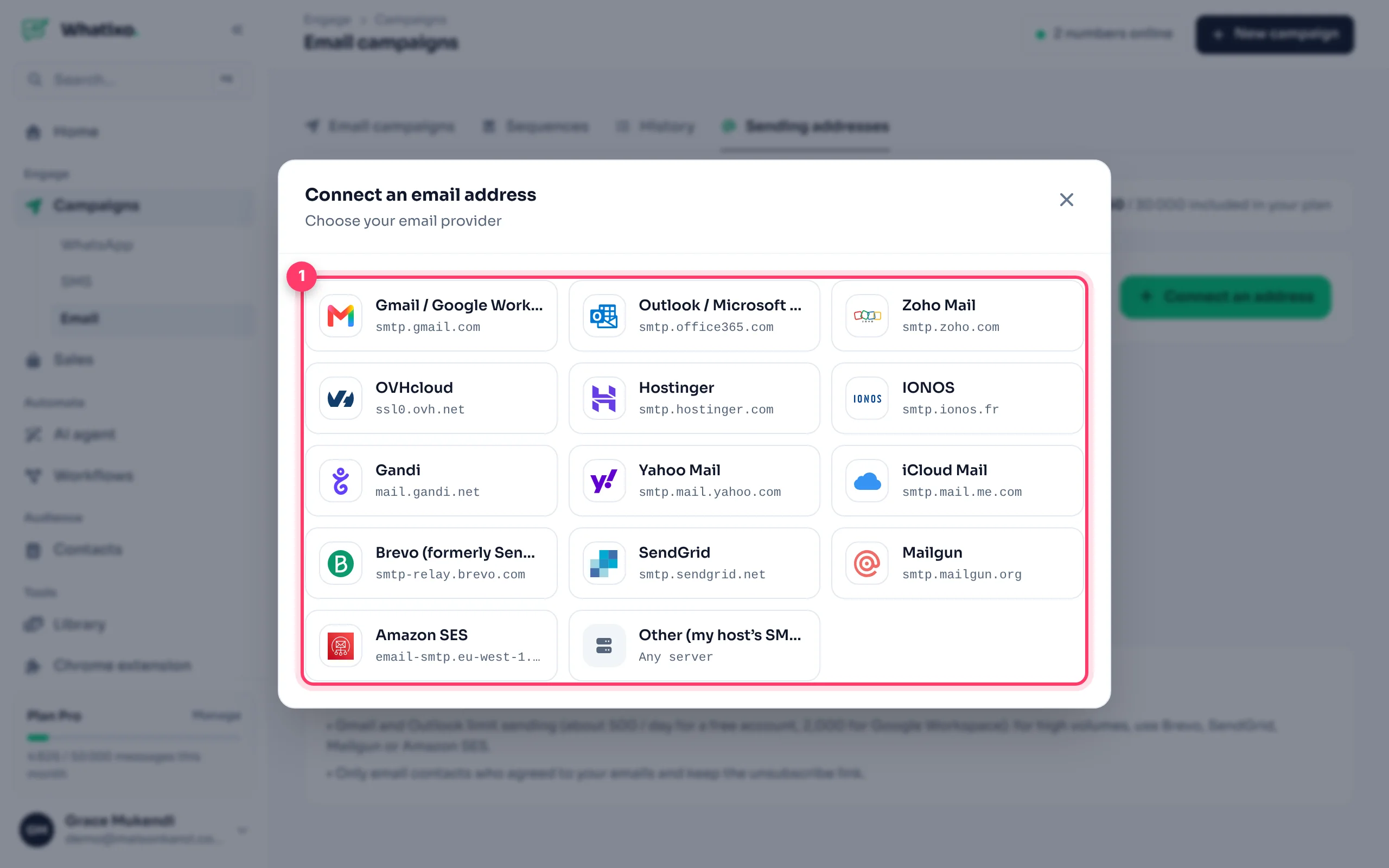
Enter your details
The sender name (what your customers see, e.g. “Maison Kanzi”), the email address and the password (often an app password). Under Advanced settings: reply-to address, daily sending limit, signature.
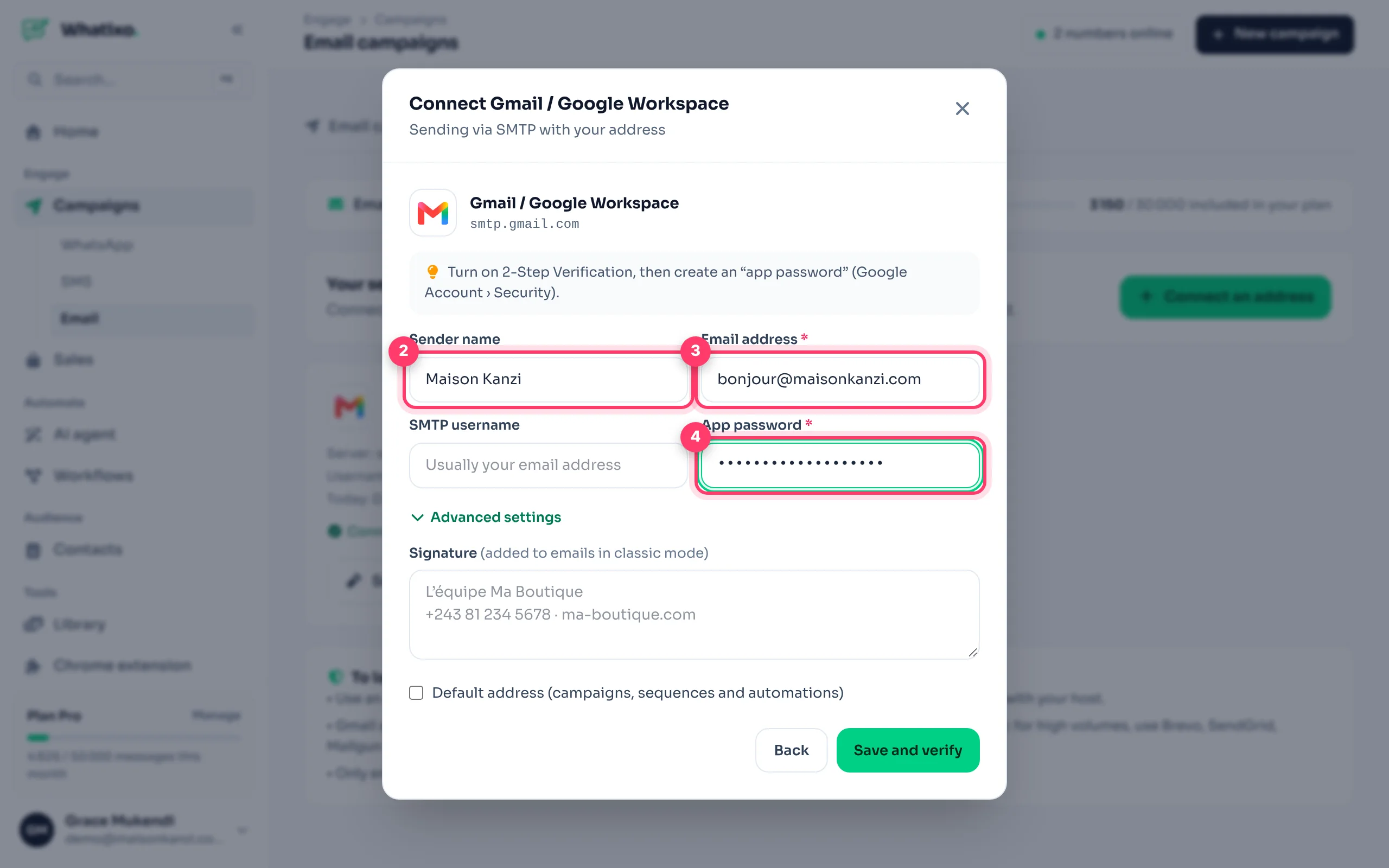
Save and verify
Save and verify tests the connection right away. Then Send a test emails you so you can check the rendering.
Gmail and Outlook reject your regular password for this kind of connection. Turn on 2-Step Verification for your account, then create an app password (Google Account → Security → App passwords) and paste it into Whatixo.
2. Create a campaign
Campaign and sender
Name the campaign and choose the sending address.
Recipients
CRM contacts (all or a tag: the address is read from your contacts’ “email” field), Excel / CSV file (an “email” column is required) or Pasted addresses. Contacts without an email and unsubscribed people are skipped automatically.
Content
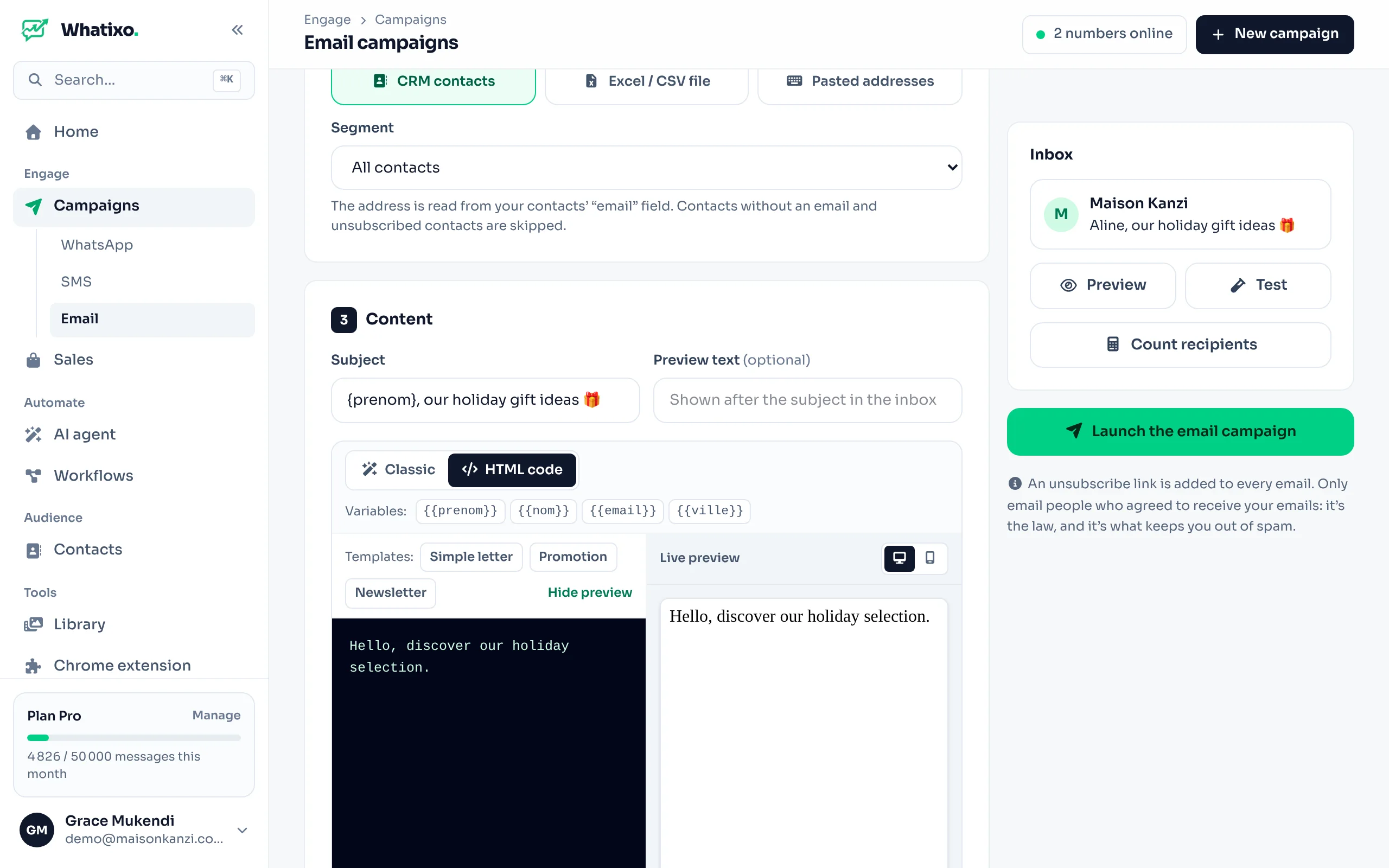
Write the subject and, optionally, a preview text (the grey line shown after the subject in the inbox). Then the content:
- Classic: a visual editor (headings, bold, colors, lists, links, images, buttons). Your text is laid out in a mobile-friendly template, with your signature.
- HTML code: paste your own template or start from a built-in one, with a live preview.
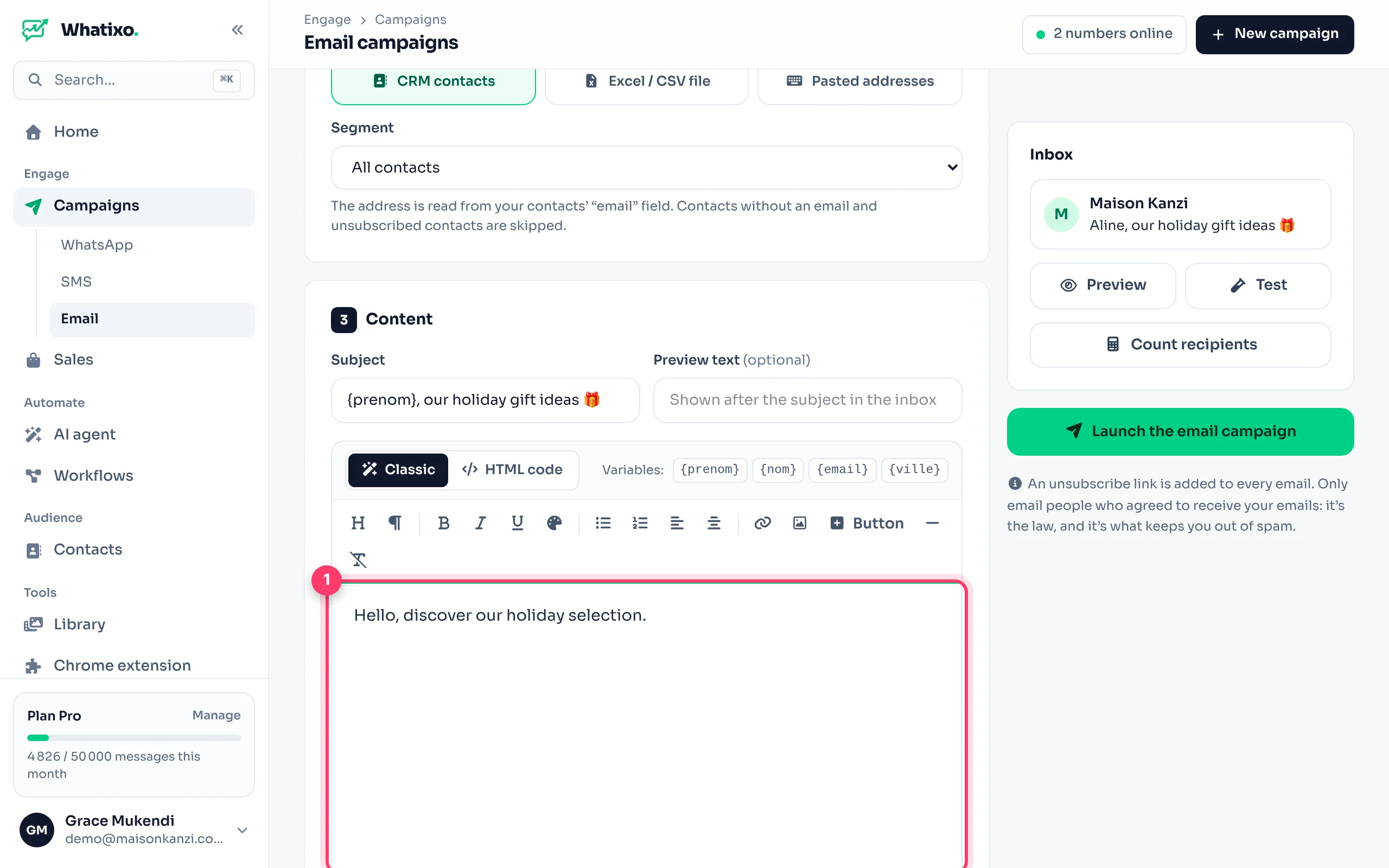
Test, then launch
On the right, the “Inbox” preview shows the sender and subject. Preview shows the full email, Test sends it to you, Count recipients checks the target. Pick the speed and Now or Schedule, then Launch the email campaign.
Available variables: {prenom} (first name), {nom} (last name), {email}, {ville} (city), {telephone} (phone) and your file’s columns.
3. Measure
My campaigns shows for each one: progress, emails sent, opens, clicks and unsubscribes. The History tab lists every email sent (campaign, sequence, workflow, test) with its status.
The open rate is an estimate: some mail apps block tracking images. Clicks are reliable.
Unsubscribes
Every email includes an unsubscribe link and the one-click unsubscribe headers required by Gmail and Yahoo. Unsubscribed people appear under Unsubscribed and no longer receive campaigns or sequences. Resubscribe adds them back if they ask you to.
Landing in the inbox
- Use an address on your own domain and set up SPF, DKIM and DMARC with your host.
- Free Gmail and Outlook accounts have a daily sending limit: for high volumes, prefer Brevo, SendGrid, Mailgun or Amazon SES.
- Only email contacts who agreed to receive your emails, and avoid ALL-CAPS or overly promotional subjects.
To automate emails (welcome, follow-ups), see Email + SMS sequences. To send an email on every order, see the Email action in workflows.