
Docs / Getting started
The app home screen
The home screen sums up your month at a glance: messages sent, contacts, campaigns, sequences, the status of your WhatsApp numbers and your plan usage.
What you see
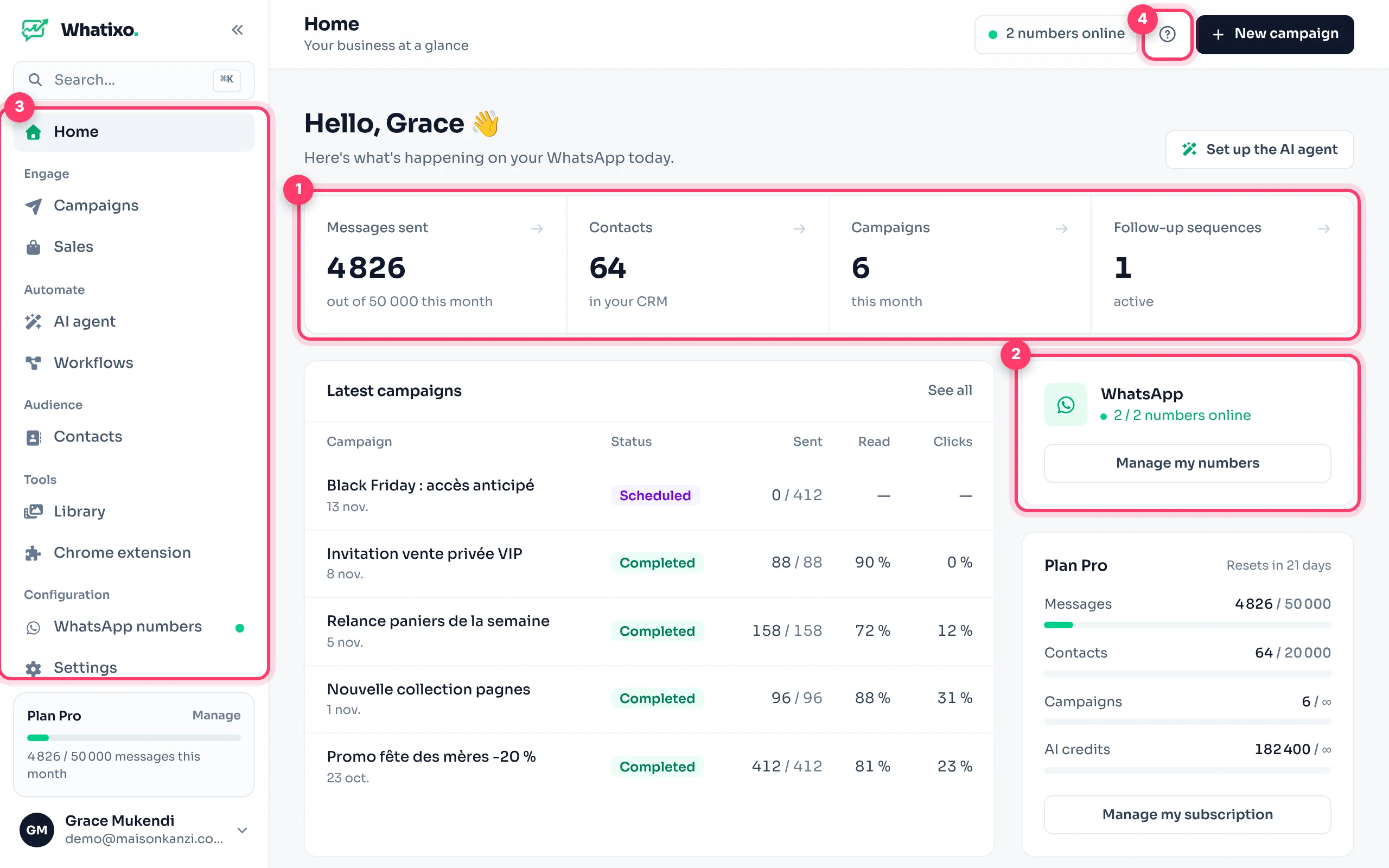
- This month’s numbers: WhatsApp messages sent (and your plan’s maximum), contacts in the CRM, campaigns launched this month and active sequences. Each card is clickable.
- WhatsApp: how many numbers are online. If a number disconnects, an orange banner appears at the top of every page with a button to reconnect it.
- The menu, organized by goal: Engage (WhatsApp, SMS and email campaigns; sales), Automate (AI agent, workflows), Audience (contacts), Tools (library, Chrome extension) and Configuration (numbers, settings).
- The “?” button replays the guide and animated demo of the page you’re on.
Further down: your latest campaigns (sent, read, clicks), your plan card (message, contact, campaign and AI credit gauges, with the reset date) and shortcuts to features worth discovering.
Quick search (Ctrl K)
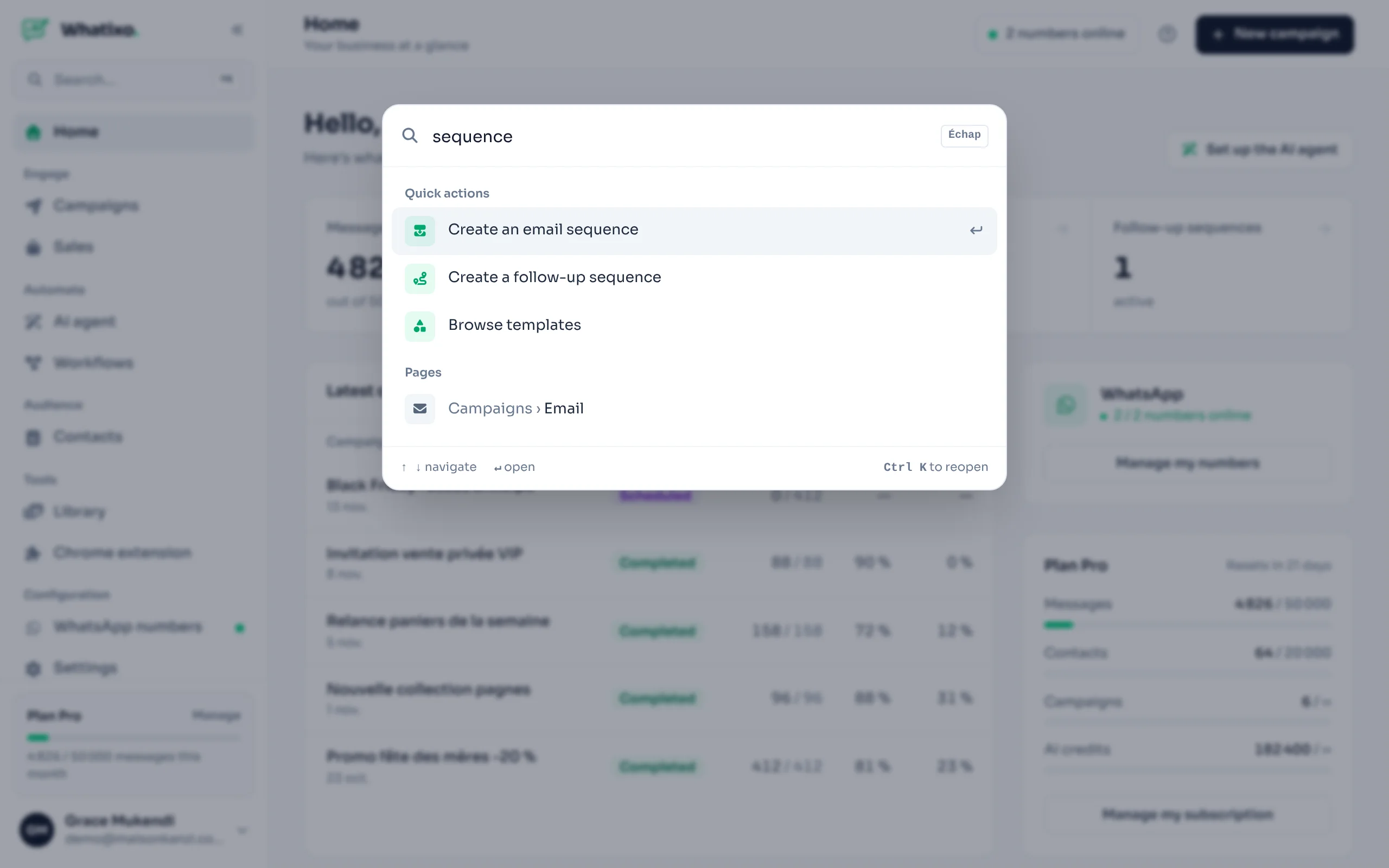
Press Ctrl + K (⌘ + K on Mac) or click Search… at the top of the menu. Type what you want to do: “sequence”, “import”, “SMS”, “password”… and press Enter.
Collapsed menu and mobile
- On desktop, the double arrow « at the top of the menu collapses it to icons. Your choice is remembered.
- On a phone, open the menu with the ☰ button at the top left.
- Features marked Pro are included in higher plans: one click shows what they bring.
Switch the app language (French / English) from your account menu at the bottom left, or in Settings → Profile.
Questions? Message us from the app (Help & support) or at support@whatixo.com.Updated: November 2026