
Shopify order notifications on WhatsApp
For every new order in your Shopify store, your customer automatically receives a WhatsApp confirmation, sent from your number. You can then notify them at shipping, ask for a review…
- A Whatixo account with a connected WhatsApp number.
- Admin access to your Shopify store (owner or staff with the “Settings” permission).
Part 1 — Create the integration in Whatixo
Create a workflow
Automate → Workflows → Create.
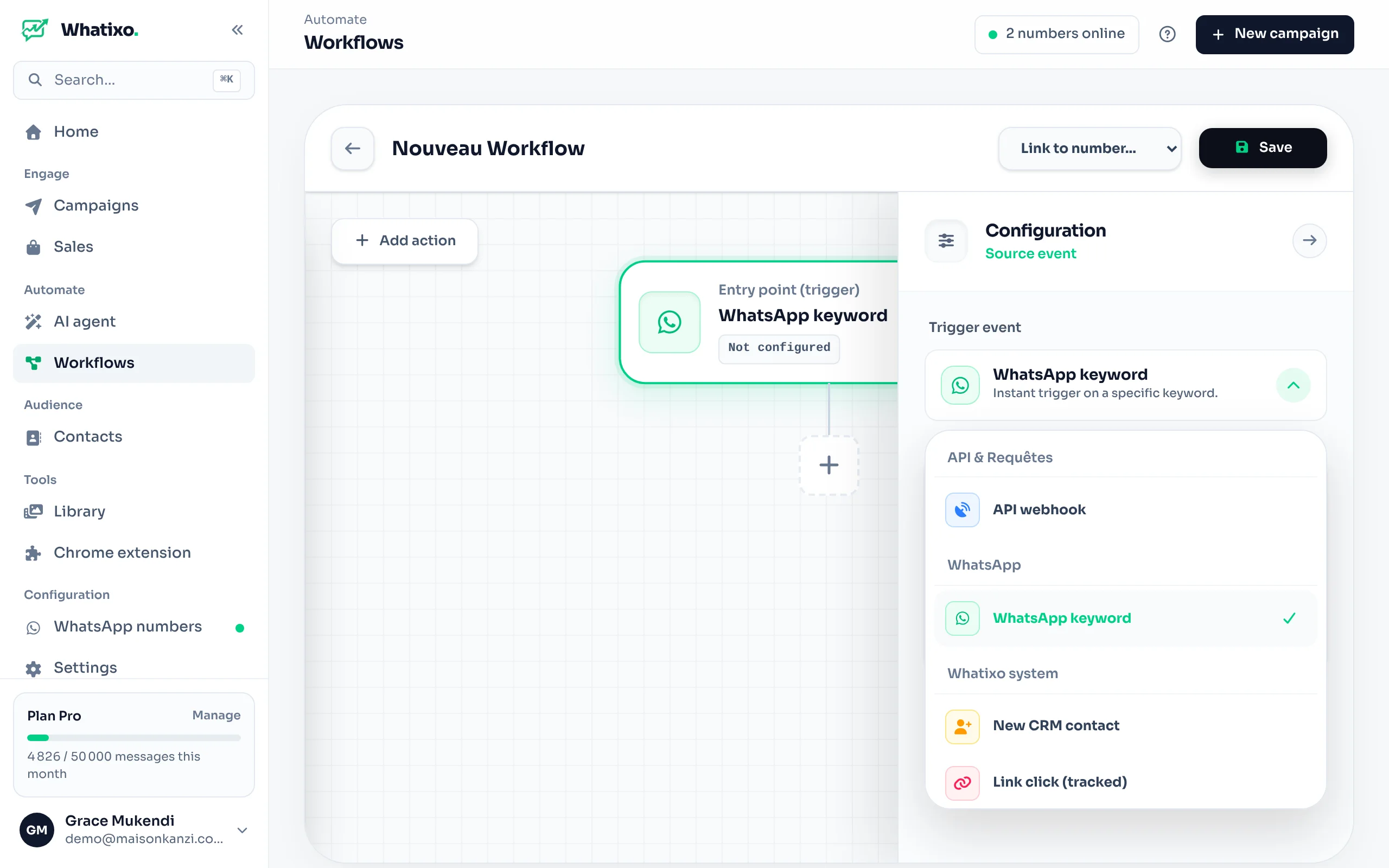
Choose the Shopify trigger
Click the trigger block, then Shopify.
Link your number and save
Select the number that will send the confirmations, then click Save.
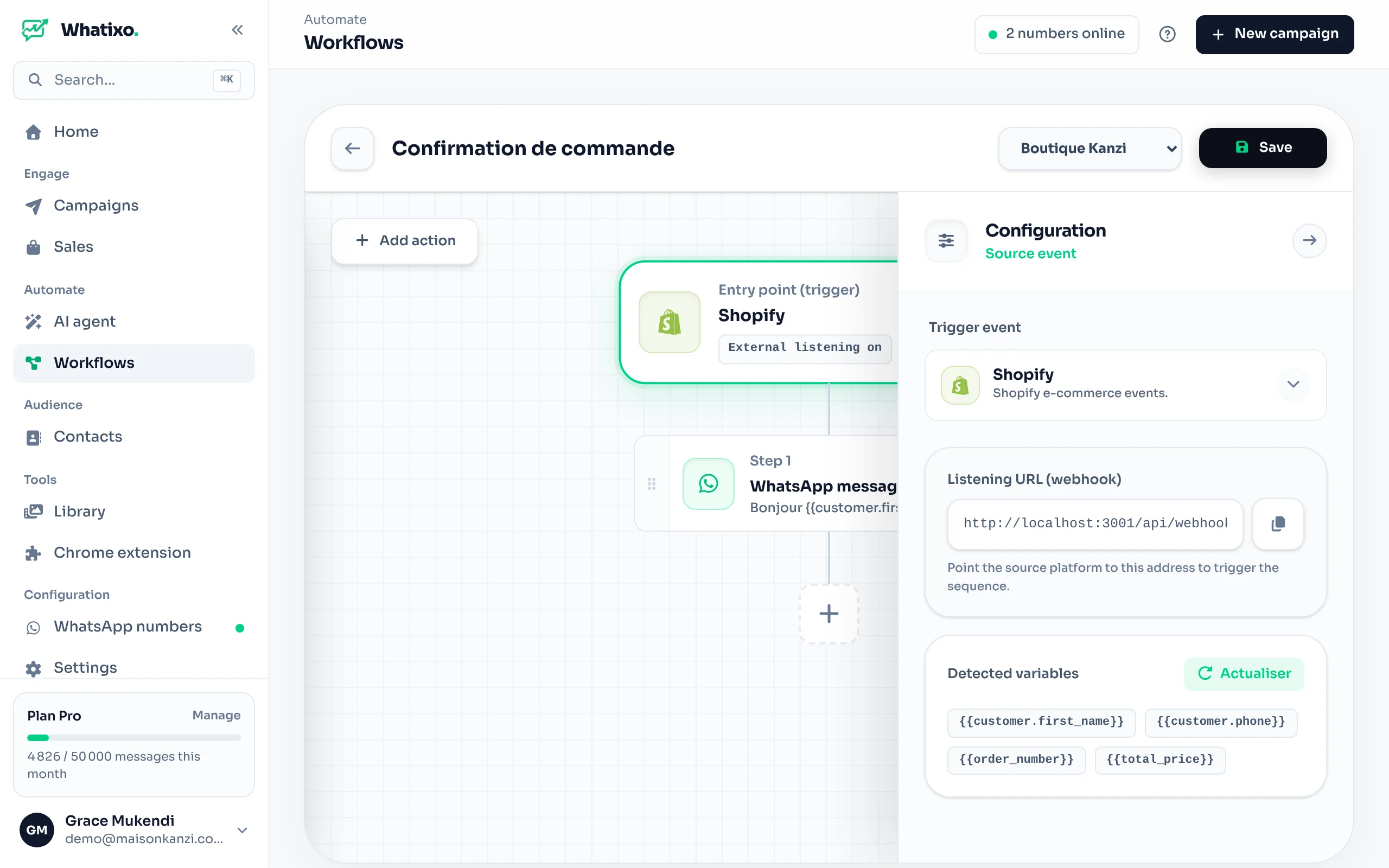
Copy the listening URL
The integration is created and the editor reopens with your listening URL. Click the copy icon.
Part 2 — Declare the webhook in Shopify
Open notifications
In the Shopify admin: Settings (bottom left) → Notifications → Webhooks.
Create the webhook
Click Create webhook and fill in:
| Shopify field | Value |
|---|---|
| Event | Order creation |
| Format | JSON |
| URL | The listening URL copied from Whatixo |
| Webhook API version | The latest one offered |
Then Save.
Send a test notification
In the webhook list, click Send test notification next to your webhook. Shopify sends a fake order to Whatixo.
Part 3 — Write the confirmation message
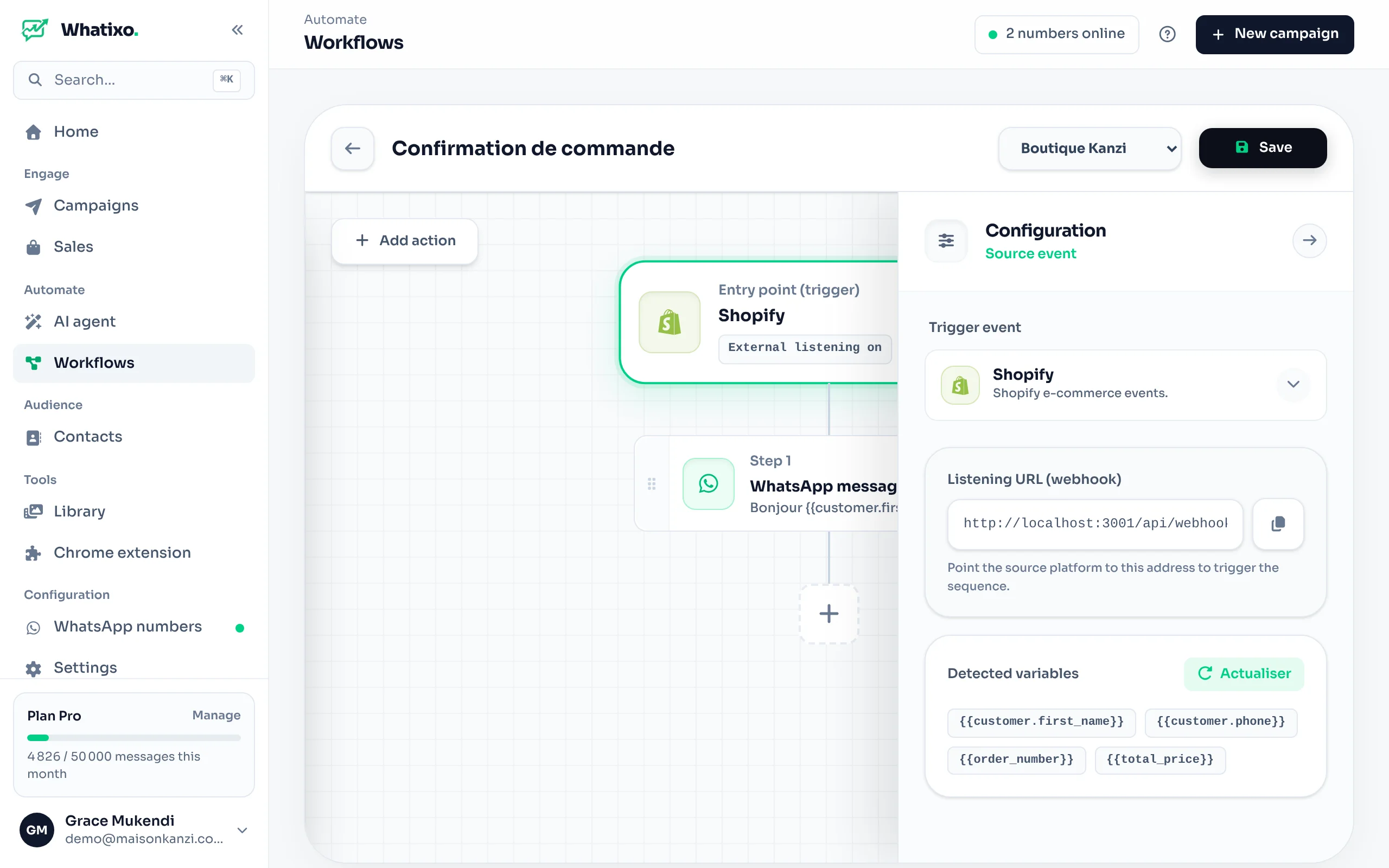
Get the variables
Go back to the Whatixo workflow and click Refresh in Detected variables. The Shopify order fields appear.
Add the “WhatsApp message” action
Add action → WhatsApp message. Recipient: {{customer.phone}}.
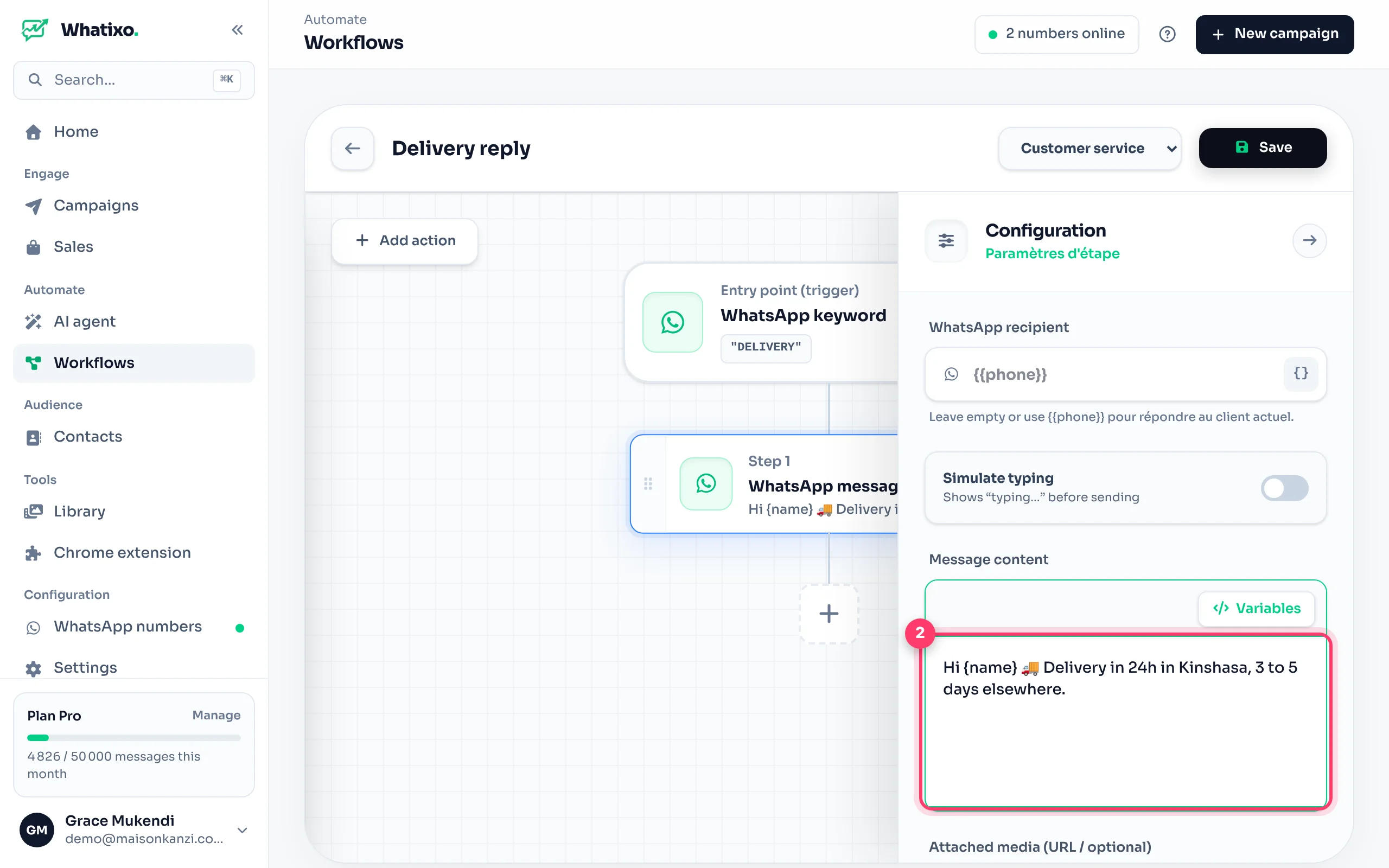
Write the message
Hi {{customer.first_name}} 👋

Thanks for your order #{{order_number}} of {{total_price}} {{currency}}!
We’re preparing it with care and will let you know as soon as it ships 📦

Track my order: {{order_status_url}}
Turn on Simulate typing for a more natural feel.
Save and place a real test order
Save, then place an order in your store with your phone number. The message arrives on WhatsApp seconds after the order.
The most useful Shopify variables
| Variable | Content |
|---|---|
{{customer.first_name}} / {{customer.last_name}} | Customer’s first / last name |
{{customer.phone}} | Customer account phone |
{{shipping_address.phone}} | Shipping address phone |
{{billing_address.phone}} | Billing address phone |
{{order_number}} / {{name}} | Order number (1042) / display name (#1042) |
{{total_price}} {{currency}} | Total and currency |
{{financial_status}} | paid, pending (cash on delivery)… |
{{line_items.0.title}} {{line_items.0.quantity}} | First item ordered and its quantity |
{{shipping_address.city}} | Delivery city |
{{order_status_url}} | Order tracking link |
Always getting the WhatsApp number
The phone isn’t always in the same place: some customers give it in their account, others only in the shipping address.
- In Shopify: Settings → Checkout → make the phone number required in the shipping address.
- In the workflow, add a Condition before the message:
{{customer.phone}}exists.- If yes branch: message to
{{customer.phone}}. - If no branch: message to
{{shipping_address.phone}}.
- If yes branch: message to
WhatsApp requires the country code. Shopify normally stores numbers in international format (+243…) when the address country is filled in. A number entered without a country code can’t receive the message.
Go further
Shipping message
Create a second Shopify workflow and a second Shopify webhook with the Order fulfillment event. Message: “Good news {{customer.first_name}}, your order {{name}} is on its way 🚚”.
Thank and retain
In the confirmation workflow, add CRM management → tag shopify-customers. Then create a sequence on that tag: review request on day 5, promo code on day 30.
Notify your team
Add a Group message action to post each order in your logistics team’s WhatsApp group.
Troubleshooting
| Problem | Solution |
|---|---|
| “No data received” after the test | Check the URL pasted in Shopify (no spaces), the JSON format, then resend a test notification. |
| The test arrives but no message is sent | Shopify’s test order often has a fake number or none. Try with a real order to your number. |
The message goes out with {{customer.first_name}} as plain text | The variable doesn’t exist in the received order: check the spelling in Detected variables. |
| Shopify reports delivery failures | Make sure the integration is active and your Whatixo subscription is current. Shopify disables a webhook after many failures: recreate it if needed. |
| No message although everything looks right | Check that the linked number is ONLINE in WhatsApp numbers and that your message quota isn’t used up. |