
Workflows
A workflow is an automatic scenario: when something happens (the trigger), Whatixo runs a series of actions. Examples: “When a customer writes delivery, reply with the delivery times”, “When a Shopify order comes in, send a WhatsApp confirmation and an email”. Menu Automate → Workflows.
Create a workflow
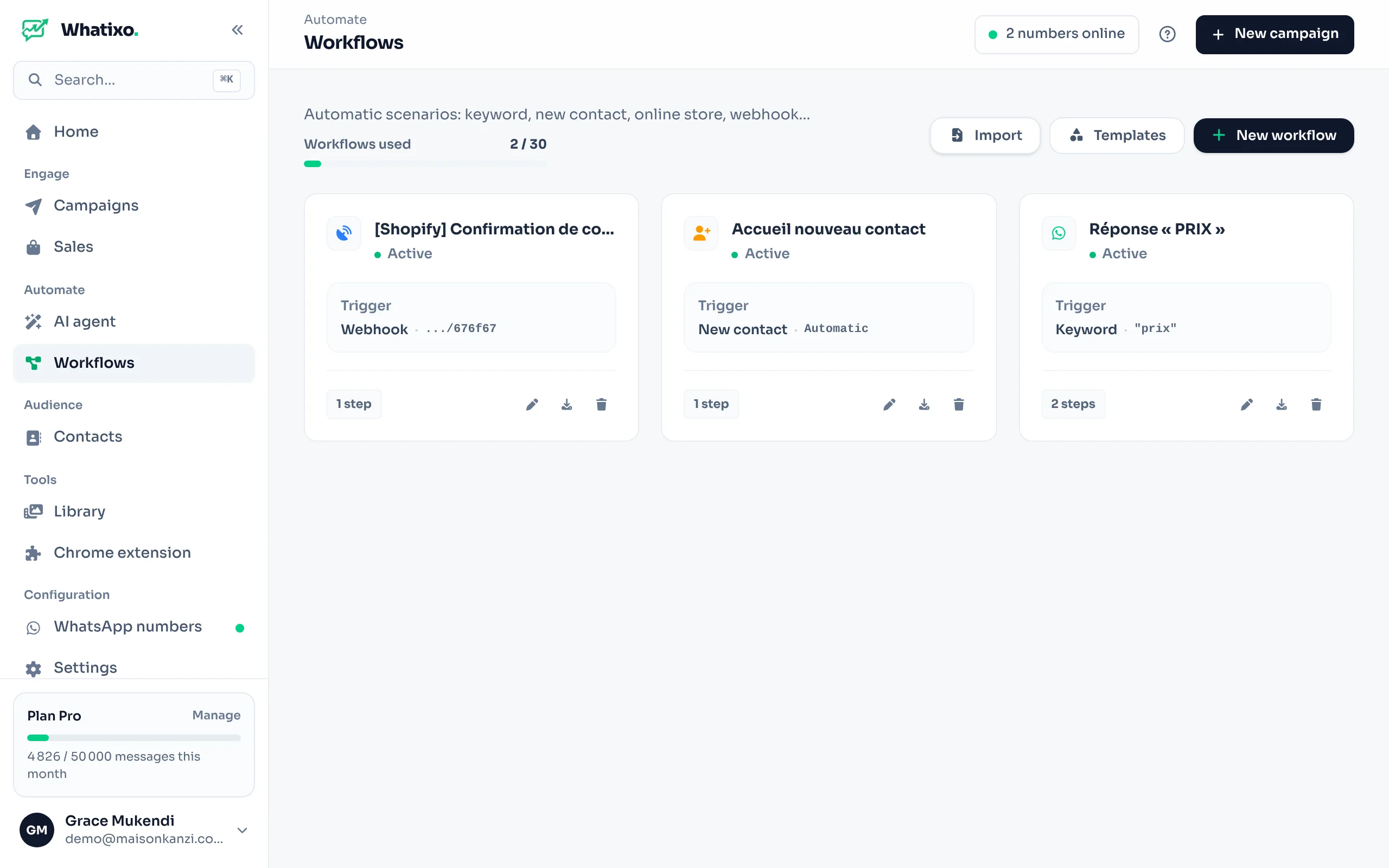
Open the editor
Click Create (or start from a template). Name the workflow and choose, at the top right, the WhatsApp number that listens and sends.
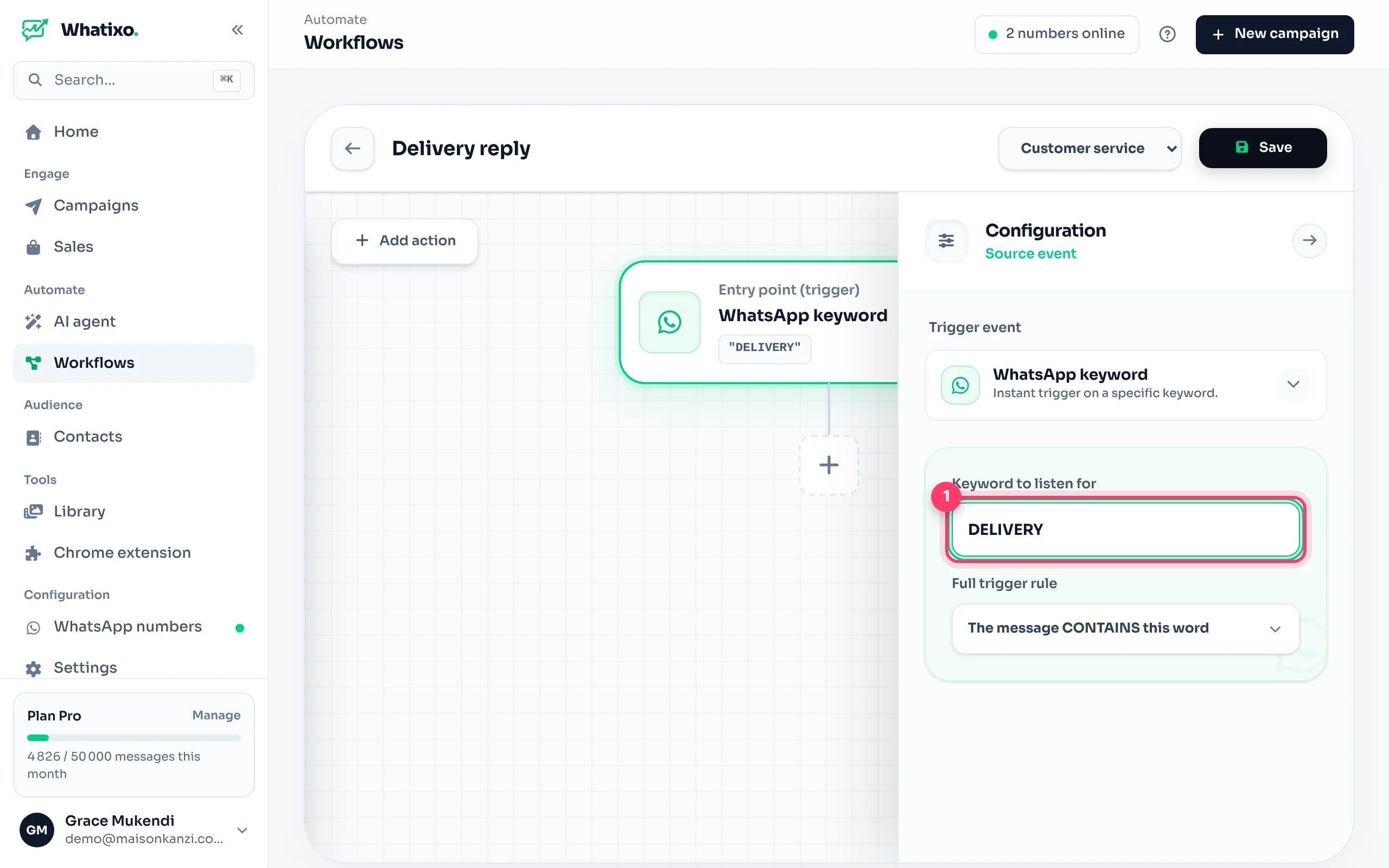
Set up the trigger
The first block is the trigger. For a keyword: type the word (e.g. delivery) and the rule (contains, is exactly, starts with…).
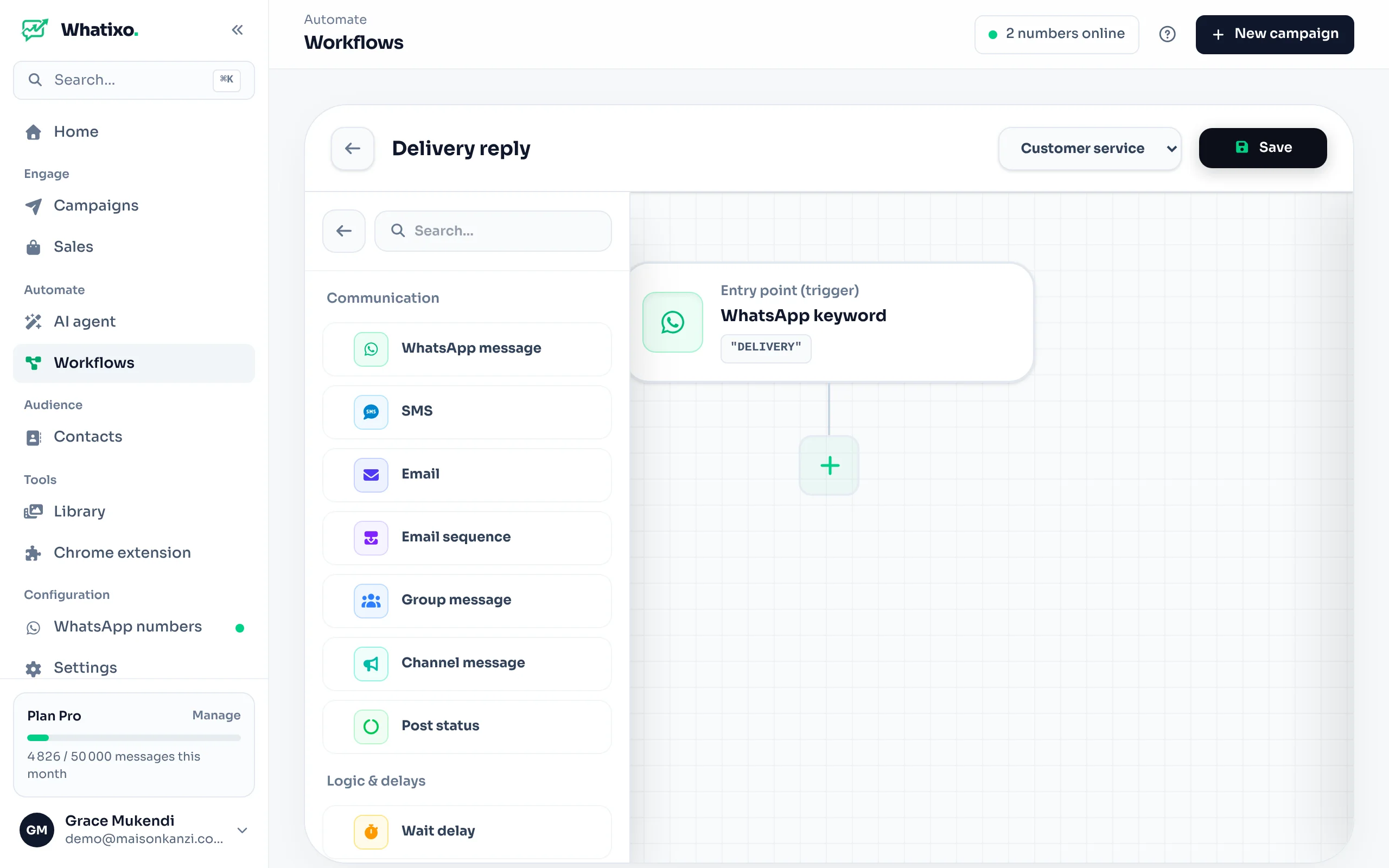
Add actions
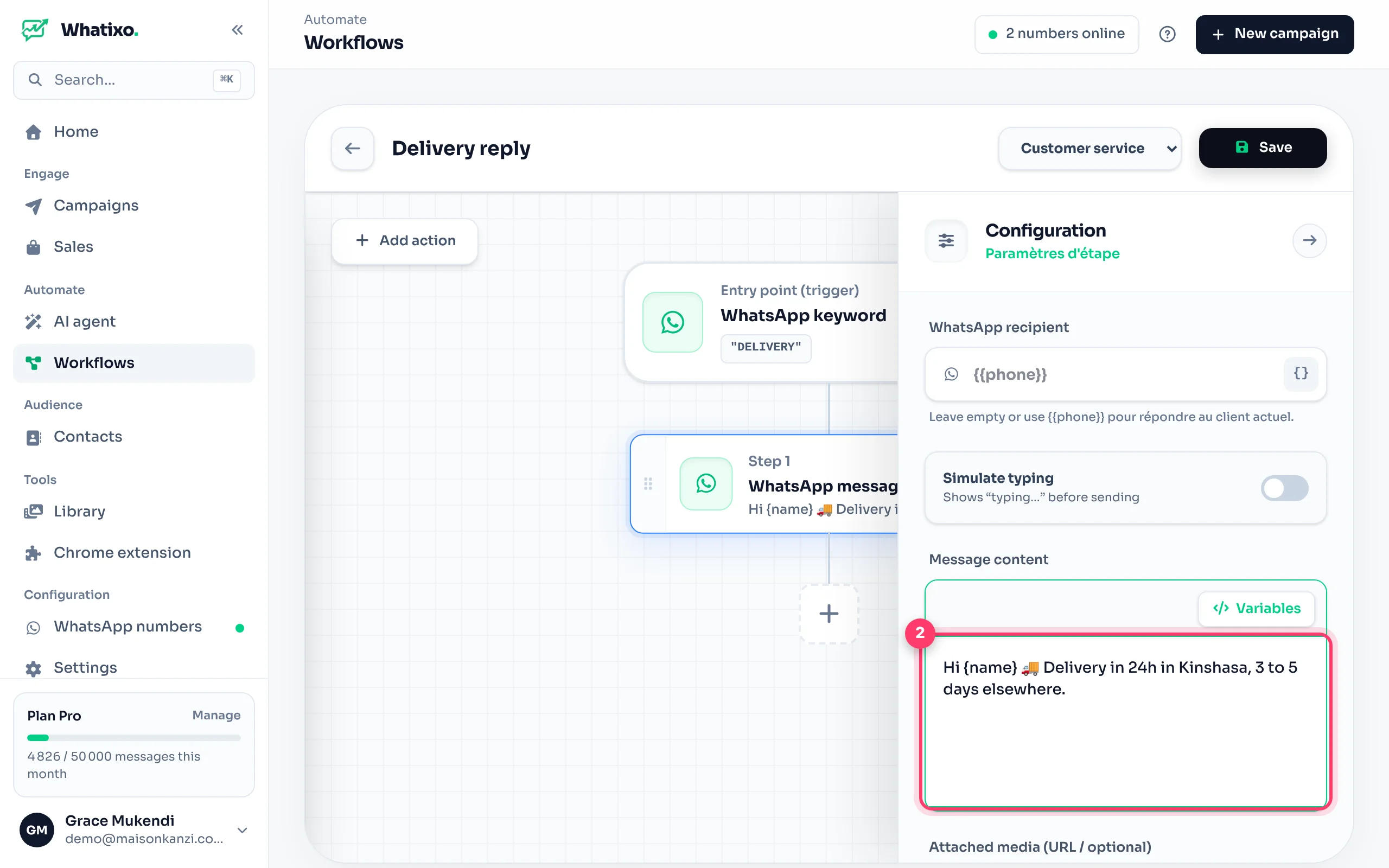
Click the + under the last block (or Add action) and choose an action from the library. Click a block to configure it in the right panel.
Save
Save turns the workflow on immediately. In the list, each card can be edited, exported (to duplicate or share it) or deleted.
Triggers
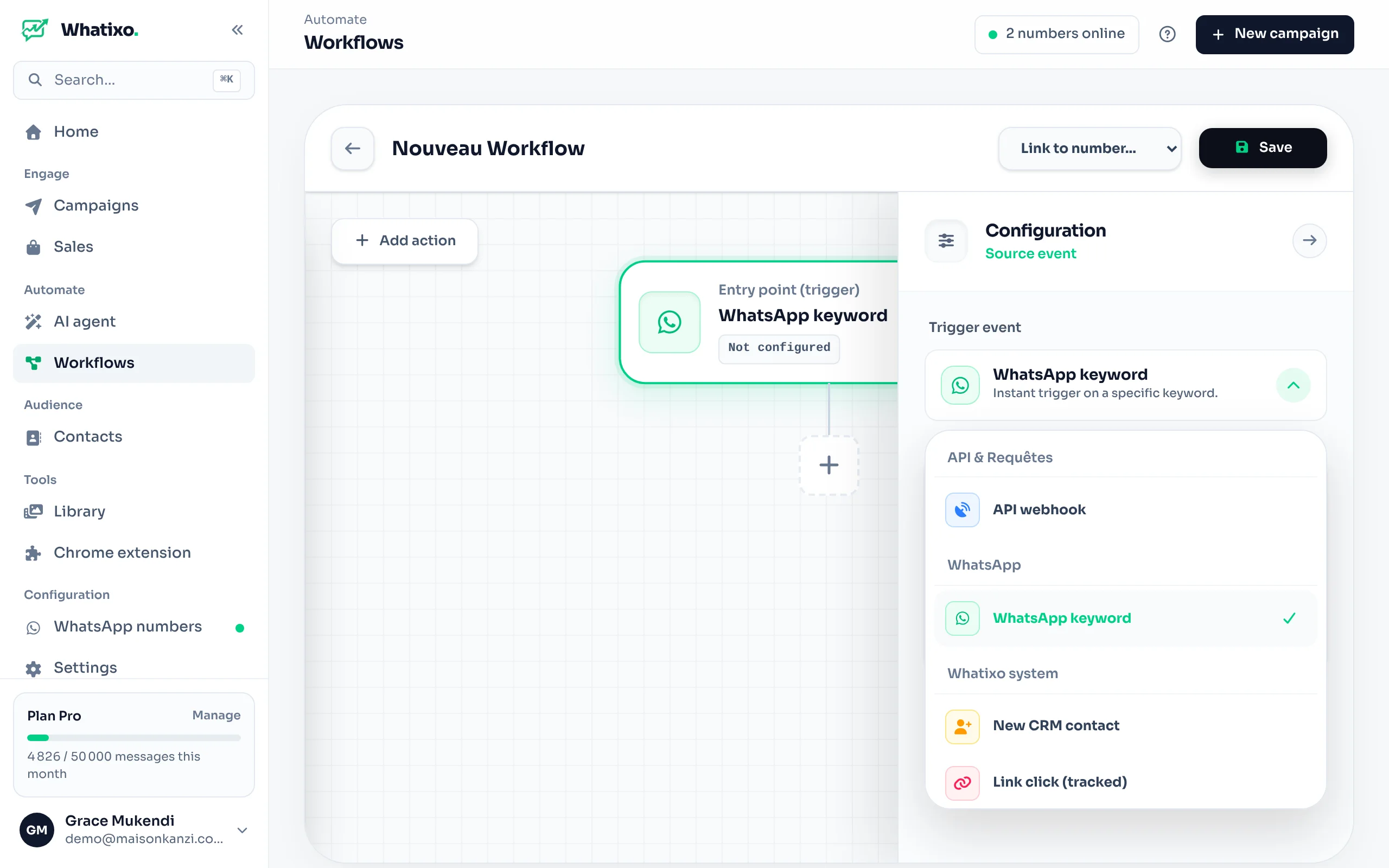
| Trigger | Fires when… | Variables |
|---|---|---|
| WhatsApp keyword | an incoming message matches the rule. | {{phone}} {{name}} {{message}} |
| New CRM contact | an unknown number writes to you for the first time. | {{phone}} {{name}} {{message}} |
| Link click | a contact clicks a tracked campaign link (empty = all links). | {{phone}} {{name}} |
| Webhook API | a request arrives on the workflow’s unique address. Tutorial | every key received |
| Shopify | an order is created, paid, shipped… Tutorial | {{customer.first_name}} {{order_number}}… |
| WooCommerce | an event in your WordPress store. Tutorial | {{billing.first_name}} {{number}}… |
| Chariow / Maketou | a sale on these platforms. | the keys the platform sends |
Webhook, Shopify, WooCommerce, Chariow and Maketou triggers create a listening address on first save. It shows in the trigger panel: that’s what you paste into the external platform.
Actions
| Category | Action | What it does |
|---|---|---|
| Communication | WhatsApp message | Send text and media. “Simulate typing” option: shows “typing…” before sending. |
| SMS | Send an SMS with your provider. | |
| Send an email (classic or HTML) from your business address. | ||
| Email sequence | Enroll the contact in an email + SMS sequence. | |
| Group message | Post in a WhatsApp group your number belongs to. | |
| Channel message | Post in a WhatsApp channel you manage. | |
| Publish status | Publish a WhatsApp status (text, image or video). | |
| Logic & delays | Wait | Wait before the next step. |
| Filter / Condition | Create two branches, “If yes” / “If no”. | |
| Artificial intelligence | AI formatting | Have the AI write or rephrase a text; result in {{ia_response}}. |
| CRM | CRM management | Create or update the contact and add a tag. |
| Nurturing sequence | Enroll the contact in, or remove them from, a follow-up sequence. | |
| Groups | Create group | Create a group with participants. |
| Add to group | Add the contact to a group. | |
| Remove from group | Remove participants from a group. | |
| Developers | API request | Call an external API; the response can be reused afterwards. |
| Fire a webhook | Send the data to an address (CRM, Google Sheets via Make…). |
Variables
In any text field, insert data between double braces: {{name}}, {{phone}}, {{message}}. The field’s Variables button shows the list.
For a webhook or a store, each key received becomes a variable. Nested objects use dots, lists use their position (starting at 0):
{
  "order_number": 1042,
  "customer": { "first_name": "Aline", "phone": "+243812345601" },
  "line_items": [ { "title": "Wax dress", "quantity": 2 } ]
}| Variable | Value |
|---|---|
{{order_number}} | 1042 |
{{customer.first_name}} | Aline |
{{line_items.0.title}} | Wax dress |
No need to guess the keys: send a first test event, then click Refresh in Detected variables. Every key received shows up and inserts in one click.
Conditions (If / Else)
The Filter / Condition action compares a variable to a value: equals, differs from, contains, starts with, has the tag, exists, greater than… Several rules can be combined with AND / OR.
Ready-to-use examples
Automatic reply to “PRICE”
Keyword price (contains) → WhatsApp message “Hi {{name}}, here are our prices 👇” with your price list as an image → CRM management: tag lead.
Welcome new contacts
New CRM contact → Wait 1 minute → WhatsApp message “Welcome {{name}} 🎉 How can I help?”.
Multichannel order confirmation
Shopify (order created) → WhatsApp message “Thanks {{customer.first_name}}, reply 1 to confirm” → summary email → Condition “no phone” → SMS.
A keyword triggers the workflow on every matching message. Pick precise words (“PRICE”, “CATALOG”) rather than “hello”, and avoid having a workflow and the AI agent both answer the same message.