
WhatsApp numbers
The Configuration → WhatsApp numbers menu brings together the numbers that send and receive your messages. You can connect several (store, customer service, deliveries…) depending on your plan.
Add a number
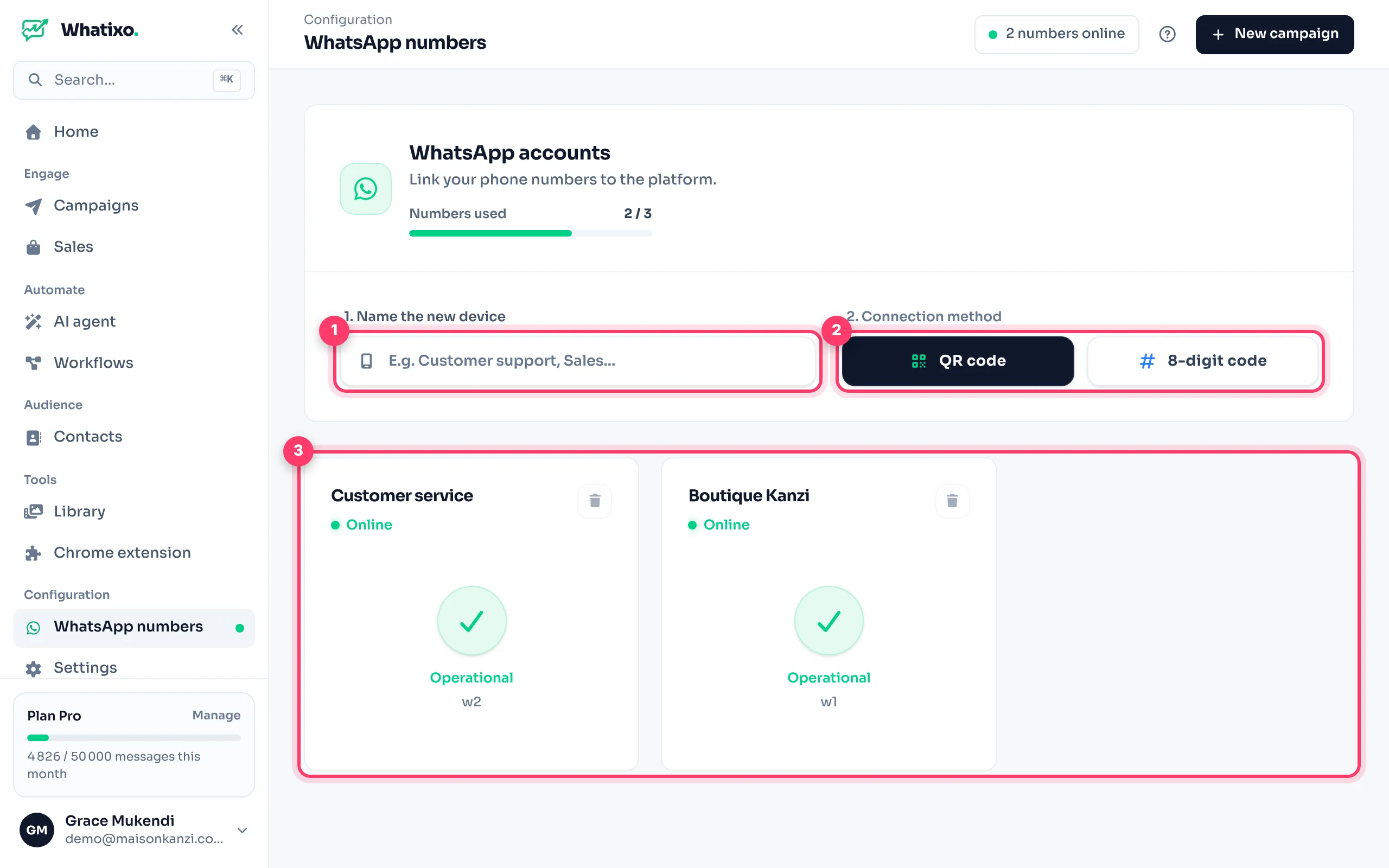
Name the number
A simple name to recognize it in your campaigns and workflows: “Store”, “Customer service”, “Deliveries”.
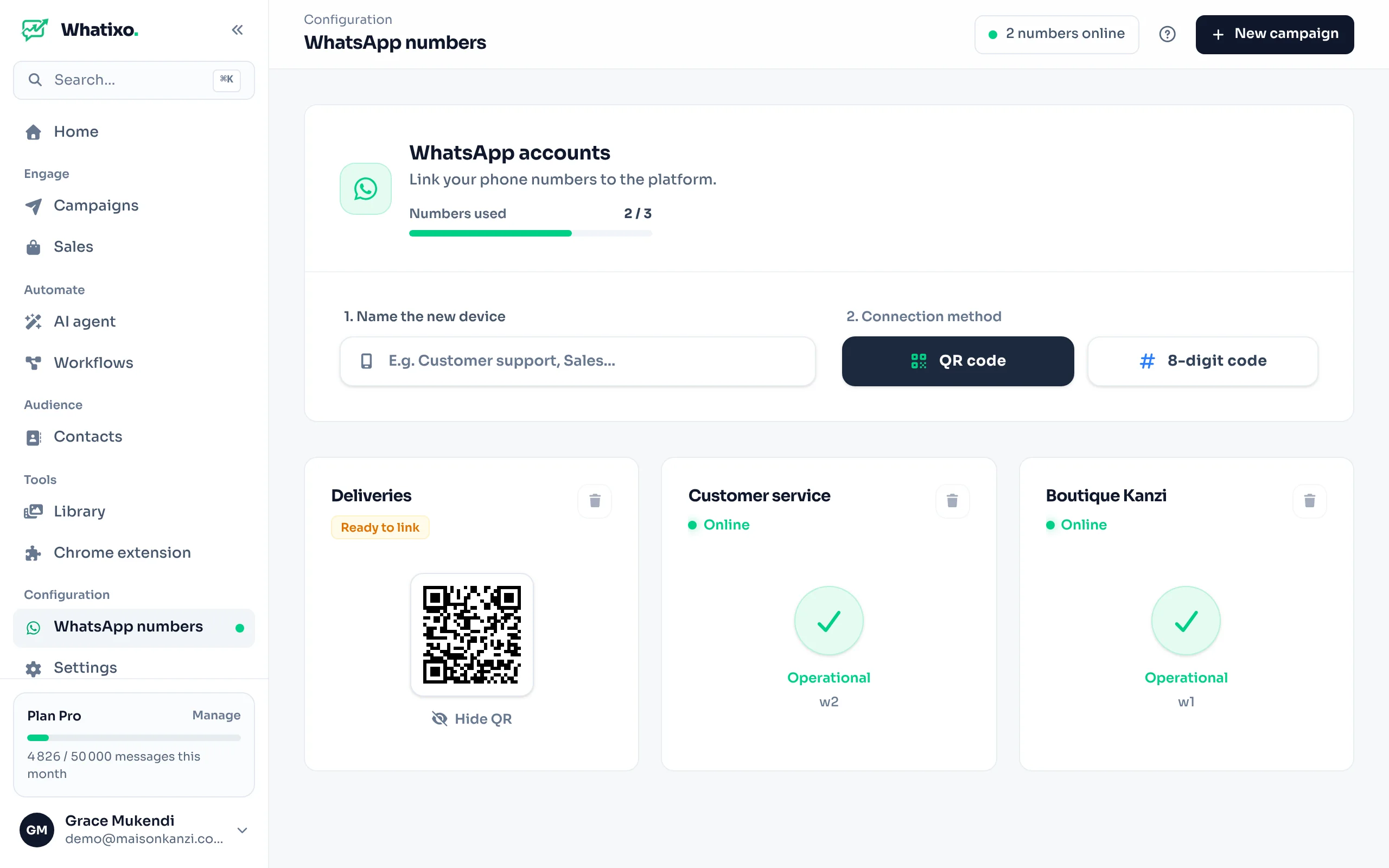
Click “QR code”
A new card appears with the QR code. On your phone: WhatsApp → Linked devices → Link a device, then scan.
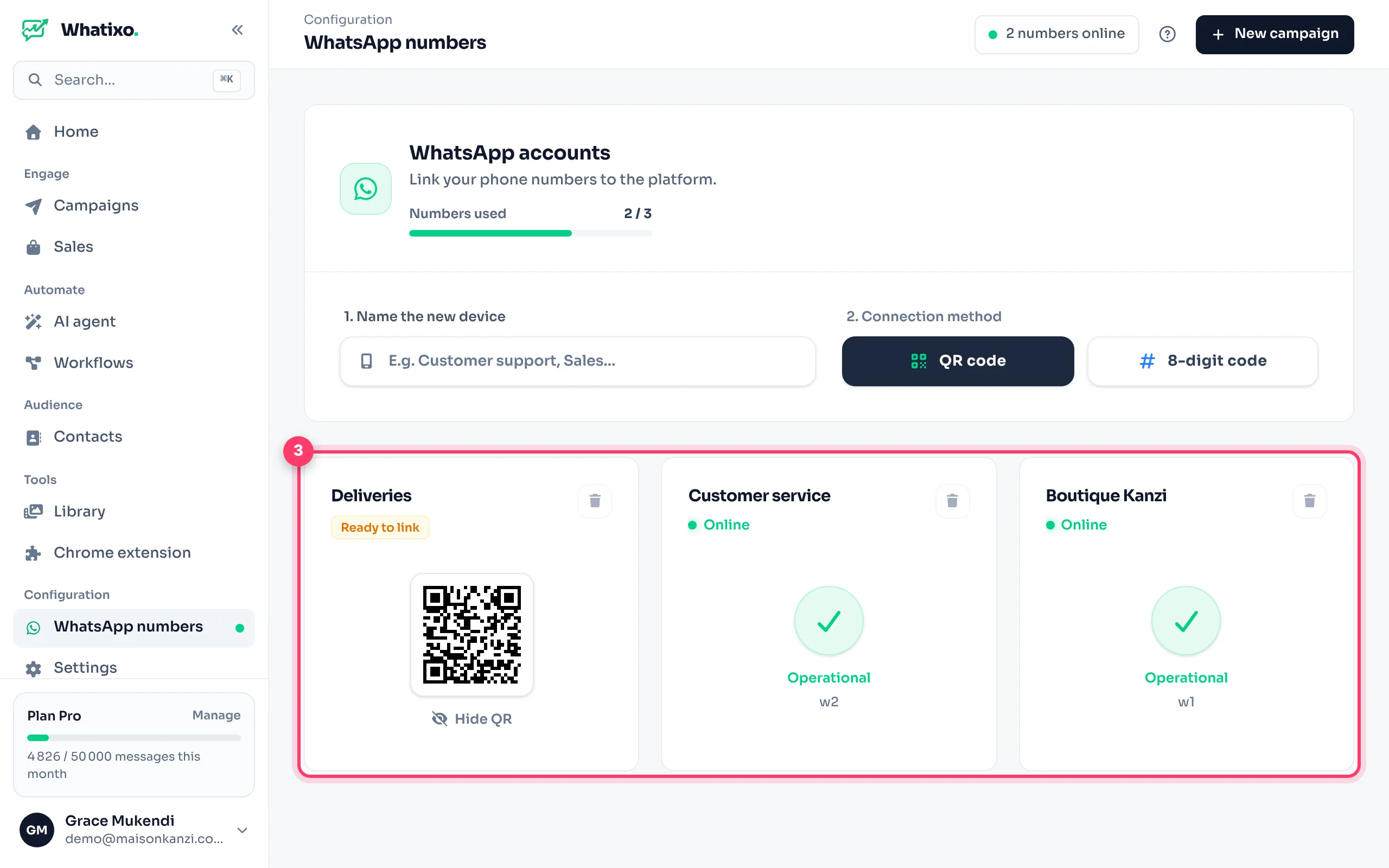
Check the status
The card switches to Online with a green check: the number is ready.
8-digit code: if you can’t scan, click 8-digit code, enter the full number with the country code (e.g. 243812345678) then Request code. On the phone: Linked devices → Link a device → Link with phone number instead, and type the code shown.
Understanding a number’s status
| Status | What it means | What to do |
|---|---|---|
| Online | The number sends and receives normally. | Nothing. |
| Ready to link | The QR code is waiting to be scanned. | Scan it, or click “Show QR code”. |
| Disconnected | WhatsApp removed the linked device (phone off for a long time, manual logout…). | Click “Reconnect” and scan again. |
When a number is disconnected, an orange banner appears on every page: reconnect it quickly so your campaigns, workflows and AI agent keep working.
Delete a number
The trash icon on the card disconnects the number from Whatixo and frees a slot in your plan. Your contacts and campaign history are kept.
FAQ
Can I use WhatsApp Business?
Yes. WhatsApp and WhatsApp Business work the same way. With WhatsApp Business, the Chrome extension can also export your labels.
Does my phone need to stay on?
Not all the time. But WhatsApp unlinks devices if the phone doesn’t go online for about two weeks. Open WhatsApp from time to time.
How many numbers can I connect?
It depends on your plan: the “Numbers used” gauge at the top of the page shows where you stand. See Plan and billing.